

Quick answer. There is no separate subsection sign. The symbol people mean is the section sign, §, Unicode U+00A7, and subsections follow the section number in parentheses, as in 42 U.S.C. § 405(c)(2)(C)(ii) from LII's citation guide. To type §, hold
Altand type0167on a Windows numeric keypad, pressOption+6on a US Mac keyboard, or type00A7and pressAlt+Xin Microsoft Word. On a web page, use§. Put a space after the symbol and double it (§§) when you cite more than one section.
Key takeaways
- "Subsection sign" means § (SECTION SIGN, U+00A7), because Unicode has no character named "subsection sign" and subsections go in parentheses.
- On Windows,
Alt+0167needs the numeric keypad; without one, pressWindows key + .and open Symbols, or type00A7thenAlt+Xin Word. - On a Mac,
Option+6gives § andOption+7gives ¶ on the US and ABC layouts, British-layout ISO keyboards have a § key left of 1, and the German layout usesShift+3. - ¶ is the paragraph sign for numbered paragraphs in complaints and declarations, while π and Δ are informal note shorthand for plaintiff and defendant that never belong in a filing.
- In citations, put a space after § (ideally a no-break space), use §§ for multiple sections, and spell out "Section" at the start of a sentence; the Bluebook 22nd edition and ALWD 8th edition are current, and local rules control.
- On the web, use
§or§, put a no-break space before the number, and do not assume screen readers announce § by name.
This guide is for the people who type § and ¶ for a living: paralegals, legal assistants and attorneys at plaintiff firms, law students and clerks, and the legal marketers and developers who publish statute-heavy pages. It starts with what the symbol is and what "subsection sign" really refers to, then gives one cheat sheet of verified shortcuts for the 17 characters that turn up in legal documents.
From there it covers every device and app in turn (Windows with and without a number pad, Word, Outlook, Excel, Google Docs, Mac keyboards, phones, Chromebooks and Linux), followed by the developer codes, the citation rules with worked examples from personal injury and mass tort practice, and the website and accessibility layer. Every shortcut and rule was checked against primary sources as of October 2026. The method, and the few points that could only be confirmed through secondary sources, are listed at the end under Sources and methodology.
Is there a subsection sign? What § means
There is no separate subsection sign. The mark people search for is the section sign, §, which Unicode encodes as U+00A7 SECTION SIGN in the Unicode Character Database. Subsections do not get their own symbol; they follow the section number in parentheses, as in 42 U.S.C. § 405(c)(2)(C)(ii).
That one fact settles most searches for "subsection sign", "subsection symbol" and "legal section symbol". The rest of this section explains the character, how the smaller units of a statute are written, how to read § aloud, and the fastest ways to copy or type it.
The section sign and its other names
Here is the character, ready to select and copy:
§
Unicode names it SECTION SIGN and files it under General Category Po, "other punctuation" (the same database entry linked above). Unicode's names list adds a short usage note: the sign is "used in referencing numbered sections or paragraphs". That note is the closest thing to an official definition.
If you search that names list for a "subsection sign", you will not find one. The only related entry is U+2E39 TOP HALF SECTION SIGN, a typographic variant of the shape that has nothing to do with marking subsections. So when a form, a style sheet or a colleague asks for "the subsection symbol", the right character is the ordinary §.
You will meet the sign under other names. Wikipedia's entry lists section symbol, section mark, double-s and silcrow. "Silcrow" is an informal coinage built on "pilcrow" (the paragraph sign); it is not a Unicode alias, so do not expect it to find the character in a symbol picker.
Two more facts explain why § is so easy to type on most systems. It sits in the Latin-1 Supplement block, which Unicode says is based on ISO/IEC 8859-1, the old Western European character set. And it has been part of Unicode since version 1.1, according to Unicode's DerivedAge file. Because it came from those older character sets, keyboards, fonts and Alt codes have supported it for decades.
How subsections are written
Subsections are written as letters, numbers and roman numerals in parentheses, attached directly to the section number. LII's guide states the principle for federal statutes: the section number includes "all designations of smaller units", preceded by the section symbol and a space. There is one § per section, never one per subsection.
Take the guide's own example, 42 U.S.C. § 405(c)(2)(C)(ii). Read it from the outside in. Title 42 of the United States Code, section 405, subsection (c), paragraph (2), subparagraph (C), clause (ii). That clause deals with the issuance of birth certificates and the parents' Social Security numbers, as you can see in the text of 42 U.S.C. § 405 on LII.
The U.S. Code itself confirms the names of each level. Its amendment notes describe changes using the labels "subsec.", "par.", "subpar.", "cl." and "subcl.", for example a note recording that a public law "added subcl. (VI)" in section 405. Those labels are the vocabulary to use when you describe a citation in words. Written out in full, the example is "clause (ii) of subparagraph (C) of paragraph (2) of subsection (c) of section 405". That long form is useful in a demand letter or a client email, where the reader may not know how to unpack the short cite. In a brief, the short cite is the norm.
| Part | Example | What it is | U.S. Code note label |
|---|---|---|---|
| Title | 42 | Title of the Code | (none) |
| Code | U.S.C. | United States Code | (none) |
| Section sign | § | Introduces the section | (none) |
| Section | 405 | The section | (none) |
| Subsection | (c) | Lowercase letter | subsec. |
| Paragraph | (2) | Number | par. |
| Subparagraph | (C) | Capital letter | subpar. |
| Clause | (ii) | Lowercase roman numeral | cl. |
| Subclause | (I), next level, not in this example | Capital roman numeral | subcl. |
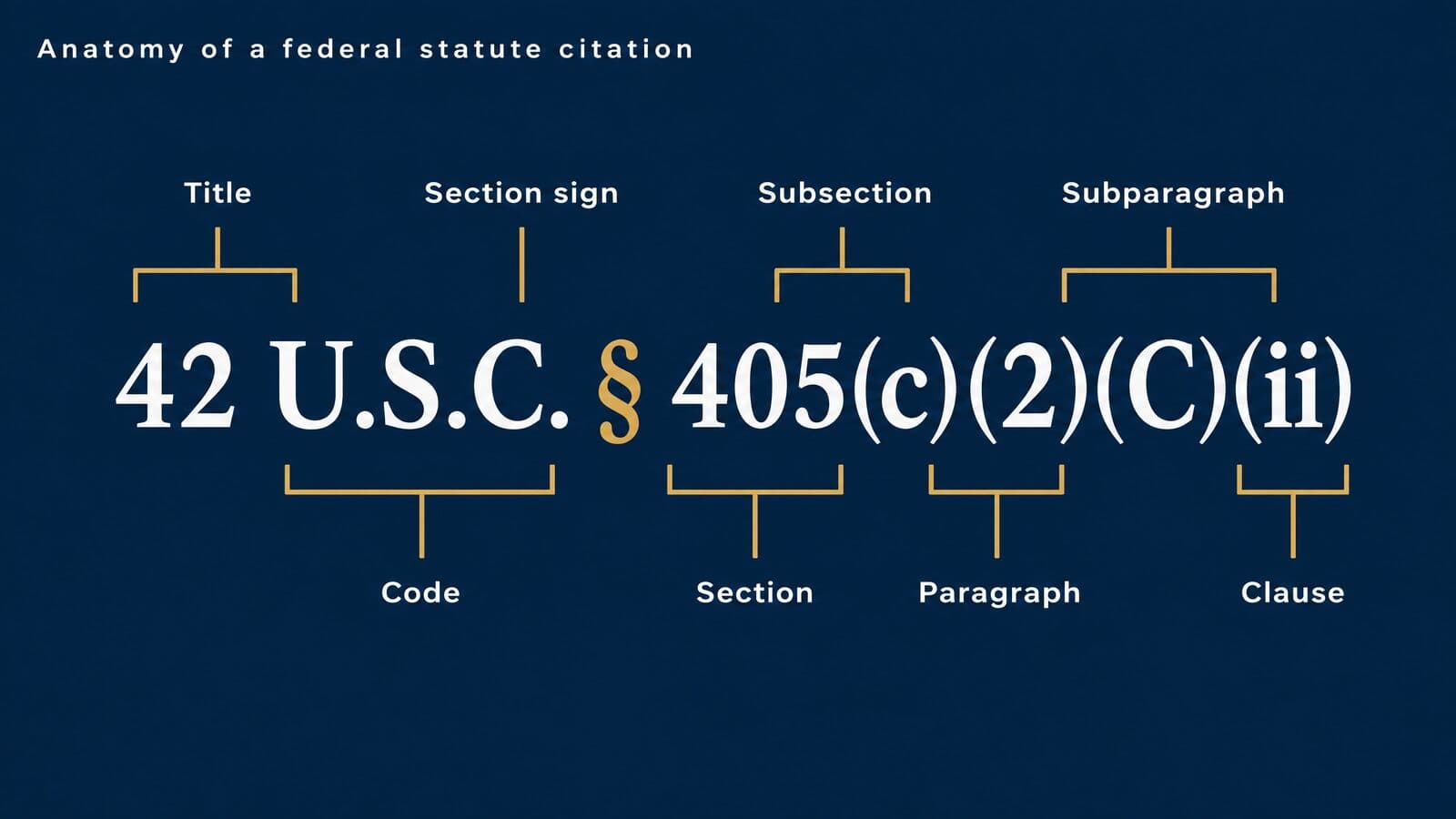
Two practical points follow from the table. First, there is no space between the section number and the first parenthesis, or between the parentheses: 405(c)(2), not 405 (c) (2). Second, the pattern is federal. State codes often use the same letter-number-letter-roman sequence, but some number their sections with hyphens or decimals, so always copy the structure from the official code you are citing.
How to say § and §§ out loud
Read § as "section" and §§ as "sections". The doubled sign marks more than one section, which is the convention described by a Bluebook 22nd-edition library guide and by Typography for Lawyers. The paragraph sign works the same way: ¶ is "paragraph" and ¶¶ is "paragraphs".
A few examples, written and spoken:
- "42 U.S.C. § 1983" is read "forty-two U.S.C. section nineteen eighty-three".
- "18 U.S.C. §§ 2721–2725" is read "eighteen U.S.C. sections twenty-seven twenty-one through twenty-seven twenty-five". That range covers the Driver's Privacy Protection Act, from § 2721 to the definitions in § 2725.
- "¶¶ 3–5" in a complaint is read "paragraphs three through five".
When you dictate to a transcription service or a voice-typing tool, say "section" and fix the glyph afterward. Most dictation produces the word, not the symbol.
The spoken form also tells you how to write a sentence that begins with a citation. Because you cannot start a sentence with a symbol, Typography for Lawyers spells the word out at the start of a sentence: "Section 17200 applied", but "§ 17500 did not" in the middle of one. The citation section later in this guide covers that rule and its exceptions.
What people mean by "symbol for statute"
The symbol for a statute is §. It marks a numbered section of a statute, code or regulation, and it is the character every citation manual uses for that job. Two federal examples show the pattern. 42 U.S.C. § 1983, titled "Civil action for deprivation of rights", is the section civil-rights plaintiffs cite every day. 16 U.S.C. § 580p, the section on the "Woodsy Owl" and "Smokey Bear" characters and names, is a favorite teaching example because nobody forgets it.
Some people who search "symbol for statute" or "symbol for law" want something else: the visual symbols of law, such as the scales of justice, Lady Justice or the gavel. Those are images and iconography, not characters you can type, and they belong to branding rather than citation.
If you landed here because you met a statute number and want to know what the law actually says, start with the official code text, then a plain-English summary. For plain-English definitions of the statutes plaintiff firms cite most, see our legal and mass tort glossary.
Copy § and its everyday codes
If you only need the sign once, copy the bold § above. If you need it again and again, use the method that matches where you are typing.
| Where you are | What to type |
|---|---|
| Windows with a numeric keypad | Alt+0167 |
| Windows laptop, in Word | 00A7, then Alt+X |
| Windows laptop, anywhere | Windows key + ., then Symbols |
| Mac (US or ABC layout) | Option+6 |
| iPhone | Typically, long-press & on the 123 keyboard |
| HTML | § or § |
| LaTeX | \S |
The sources for each row: Microsoft's Windows keyboard tips page for the Alt code, Microsoft's Word shortcut list for Alt+X, Microsoft's Windows shortcuts page for the symbol panel, a live test of Apple's US and ABC layouts (Typography for Lawyers gives the same Option+6), a secondary guide for the iPhone key, which Apple does not document, the WHATWG entity list and character-reference rules for HTML, and the LaTeX2e reference for \S. The full cheat sheet follows next, and the developer detail is in the section on Unicode, HTML, CSS and LaTeX codes.
If you are not sure a pasted character is the real §, there is a quick check in Word for Windows. Select the character and press Alt+X: Microsoft says Word then shows its code. You should see 00A7. If you see anything else, you pasted a look-alike or a character from the wrong font, and you should retype it with one of the methods above. Press Alt+X again to turn the code back into the character.
Legal symbols cheat sheet: every shortcut in one table
This table gives the verified Windows, Word, Mac and HTML input for the 17 characters that show up in legal documents, from § and ¶ to the Greek letters used in case notes. Use it as the reference; the device sections below explain each method.
The master shortcut table
Read each row left to right. The Windows Alt code column assumes you hold Alt and type the digits on the numeric keypad: Microsoft says Alt codes only work with the numeric keypad, not the number row, and that you should include the leading 0 when it is required. Its Office guide adds that Num Lock must be on if your keyboard requires it (Microsoft's Office symbols page). The Word column is a hexadecimal code you type and then convert by pressing Alt+X. The Mac column is the US keyboard layout; other layouts differ and are covered in the Mac section.
| Symbol | Name | Windows Alt code | Word: type, then Alt+X | Mac (US layout) | HTML |
|---|---|---|---|---|---|
| § | Section sign | Alt+0167 | 00A7 | Option+6 | § |
| ¶ | Pilcrow (paragraph sign) | Alt+0182 | 00B6 | Option+7 | ¶ |
| © | Copyright sign | Alt+0169 | 00A9 | Option+G | © |
| ® | Registered sign | Alt+0174 | 00AE | Option+R | ® |
| ™ | Trade mark sign | Alt+0153 | 2122 | Option+2 | ™ |
| ℠ | Service mark | none | 2120 | Character Viewer | ℠ |
| ℗ | Sound recording copyright | none | 2117 | Character Viewer | ℗ |
| † | Dagger | Alt+0134 | 2020 | Option+T | † |
| ‡ | Double dagger | Alt+0135 | 2021 | Shift+Option+7 | ‡ |
| – | En dash | Alt+0150 | 2013 | Option+Minus | – |
| — | Em dash | Alt+0151 | 2014 | Shift+Option+Minus | — |
| (no-break space) | No-break space | Alt+0160 | 00A0 | Option+Space | |
| Δ | Greek capital delta | none reliable | 0394 | Character Viewer | Δ |
| ∆ | Increment | none | 2206 | Option+J | ∆ |
| Π | Greek capital pi | none | 03A0 | Character Viewer | Π |
| π | Greek small pi | Alt+227 (no leading zero) | 03C0 | Option+P | π |
| ∏ | N-ary product | none | 220F | Shift+Option+P | ∏ |
Where the values come from: the Alt codes for §, ¶, ©, ®, ™, †, ‡ and both dashes are on Microsoft's Windows tips page. Alt+0160 is not on that page; it comes from the Windows-1252 code table, where position 160 is the no-break space. Alt+227 (no leading zero) uses the older code page 437 table, where 227 is π; that table has no capital Δ or Π, which is why those rows say none. The Alt+X method is on Microsoft's Word shortcut list. The HTML names are from the WHATWG entity list, which has no named reference for ∆ (increment) or ℠, so those rows use numeric references.
One Word caveat. Alt+X converts the hex digits just before the cursor, so if the code follows a letter or digit with no space, Word may read too many characters. Microsoft's fix is to select the code first or type it with a U+ prefix (for example U+A7).
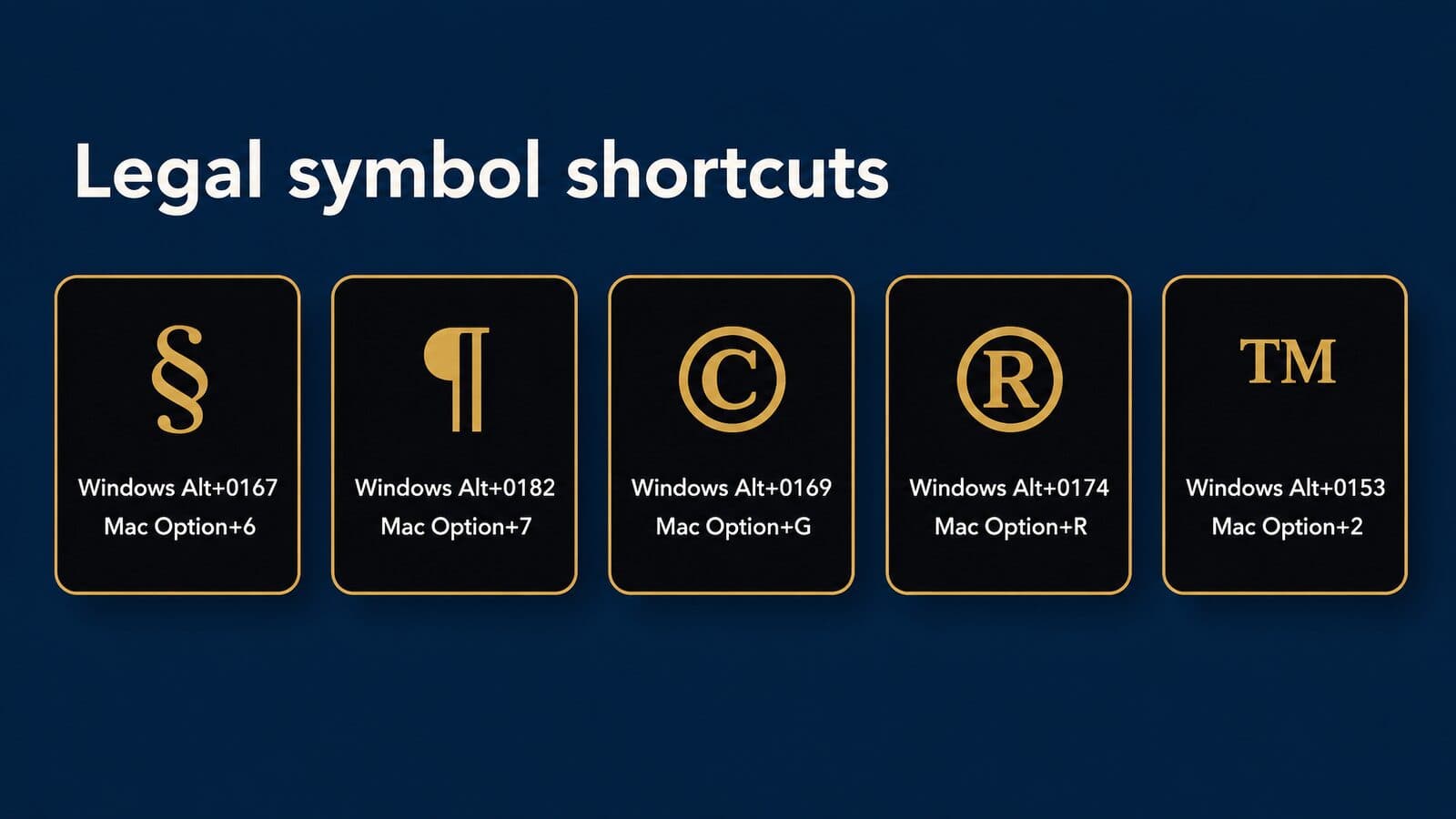
The image below is a printable subset: the five symbols most people need, with the Windows keypad code and US Mac shortcut for each.
Pick your method in 30 seconds
Most people do not need every method. Run down these rules and stop at the first one that fits your setup.
- If you type § or ¶ every day, set up a permanent shortcut once: an AutoCorrect entry in Word, a text replacement on a Mac or iPhone, or a text expander. The Word, Mac and text-expander sections below walk through each.
- On Windows with a numeric keypad, hold
Altand type0167on the keypad. It works in most Windows apps and needs no setup. - On a Windows laptop without a keypad, inside Word, type
00A7and pressAlt+X. Anywhere else, pressWindows key + .and select Symbols in the panel. - On a Mac, press
Option+6on the US or ABC layout. On the British layout, use the § key to the left of 1. On the German layout, pressShift+3. - On a phone, try long-pressing
&on the iPhone 123 keyboard (this is typical, though Apple does not document it), or set up a text replacement through the keyboard settings, as described in Apple's iPhone User Guide. - On a web page, write
§in the HTML, or type the character itself if the page is saved and served as UTF-8.
My recommendation for a firm: pick one shared method per platform and write it down. I recommend an AutoCorrect or text-replacement entry that types the sign followed by a no-break space, because it solves two problems at once. Everyone produces the same character, and the sign can never end up stranded at the end of a line, away from its number. A one-page internal note that says "on Windows, type this; on a Mac, type this" saves more time than any individual shortcut.
Every input method compared
Each method has a place. The table compares them on where they work, what setup they need and whether you need a numeric keypad. It is qualitative on purpose; speed depends on the person.
| Method | Works where | One-time setup | Needs a numeric keypad? | Best for |
|---|---|---|---|---|
Alt code (Alt+0167) | Most Windows apps | None | Yes | Desktops with full keyboards |
Emoji and symbol panel (Windows key + .) | Windows 11 system-wide; Windows 10 (now unsupported) | None | No | Occasional use on laptops |
| Character Map | Windows | None | No | Rare characters |
Word 00A7 + Alt+X | Word (not PowerPoint) | None | No | Word on laptops |
| Word custom shortcut | Word | A few minutes | No | Heavy Word users |
| AutoCorrect entry | Office apps that support AutoCorrect, one shared list | A few minutes | No | Firm-wide standard |
Mac Option+6 | macOS system-wide (US, ABC; British has a § key) | None | No | Mac users |
| Apple text replacement | Mac, iPhone, iPad, synced by iCloud | A few minutes | No | Apple users |
| Google Docs substitution | Docs on a computer | A few minutes | No | Docs-based teams |
| Text expander | System-wide; cross-platform depending on tool | Varies | No | Firms standardizing snippets |
| Copy and paste | Anywhere | None | No | One-off use |
A few notes on the rows. Microsoft ended support for Windows 10 on October 14, 2025, so treat Windows 10 steps as legacy. Microsoft says some Office programs, such as PowerPoint, cannot convert Unicode codes, and points to Character Map there instead. The AutoCorrect list is shared across the Office programs that support AutoCorrect, according to Microsoft's AutoCorrect page. Google's own substitutions help page says Docs autocorrect can be managed only on a computer.
Read the table together with the six rules above. The rules tell you which row to start with; the table tells you what you give up by choosing it.
Section sign vs paragraph sign: when to use § or ¶
Use § for numbered sections of statutes, codes, regulations and other documents divided into sections, and ¶ for sequentially numbered paragraphs, such as those in complaints and declarations. That is the division drawn by Matthew Butterick's Typography for Lawyers, and it matches the way citation guides use both marks.
The two signs look alike in small type and both mean "a numbered part of a document", which is why they get swapped. The difference is what kind of document you are pointing into.
Use § for statutes, codes and regulations
Use § whenever the thing you cite is organized into sections by its drafters: federal and state statutes, codified regulations, and the sections of session laws. Federal civil-rights claims cite 42 U.S.C. § 1983. Session laws carry sections too; the Camp Lejeune Justice Act, for example, is a numbered section of a public law, and the citation section later in this guide shows how to write it.
State codes follow the same idea. A New York no-fault case turns on Insurance Law § 5102(d), the § 5102(d) serious-injury threshold, which defines "serious injury" in a list that begins with death, dismemberment and significant disfigurement, according to the New York Senate's text.
You will also see one more variant in government documents. The GPO Style Manual (Rule 9.39) abbreviates "Sec." at the beginning of a paragraph, except that the first of a series is spelled out. That is a style rule for government publications, not a reason to use "Sec." in a brief.
Use ¶ for numbered paragraphs
Use ¶ for documents whose paragraphs are numbered in sequence: complaints, answers, declarations, affidavits and many contracts. Typography for Lawyers names declarations and complaints as the standard examples. Paragraph 14 of a complaint is written "¶ 14", with a space after the sign, and a run of paragraphs doubles the sign: "¶¶ 3–5".
The doubling rule is the same one used for sections. A Bluebook library guide describes it as doubling the symbol for multiple sections or paragraphs in one citation. Do not mix forms in a single cite, such as "¶ 3–5" or "¶¶ 3".
There is one source of confusion worth knowing about. Unicode's names list notes that ¶ is used as a "section sign in some European usage". If you work with European documents, or with a translated contract, you may see ¶ where an American drafter would write §. Follow the document's own convention when you quote it, and the citation rules of your court when you cite it.
Why your word processor is full of ¶ marks
Most people see the pilcrow every day without typing it. In Word, the "show nonprinting characters" display puts a ¶ at the end of every paragraph. Microsoft's Word shortcut list gives Ctrl+Shift+8 as the toggle, and notes that you should not use the numeric keypad for it. The marks are only on screen; they do not print.
Unicode names the character PILCROW SIGN and gives it the formal alias "paragraph sign". In Word's display it marks a paragraph break, the place you pressed Enter. In a legal document it marks a numbered paragraph. Same character, two unrelated jobs.
That double life causes much of the § and ¶ confusion. People see ¶ on screen all day, notice that it looks "legal", and assume it is the symbol for a statute. If a draft comes back with "¶ 1983", this is usually why. When you see a stray ¶ in a citation, check whether the author meant §.
Which mark goes where
This table covers the common cases in plaintiff practice.
| Document or reference | Mark | Example |
|---|---|---|
| Federal statute | § | 42 U.S.C. § 1983 |
| State statute (most states) | § | Fla. Stat. § 627.737 |
| Session-law section | § | Pub. L. No. 117-168, § 804 |
| Several statute sections | §§ | 18 U.S.C. §§ 2721–2725 |
| Complaint paragraph | ¶ | ¶ 14 |
| Several paragraphs | ¶¶ | ¶¶ 3–5 |
| Footnote reference mark (government style) | § as the fourth mark | After *, † and ‡ |
The Florida row follows the general Bluebook pattern; Florida's own courts put the section number first, as the citation section explains. As general guidance, when a document is divided into sections that also contain numbered paragraphs, cite the section with § and put the paragraph in parentheses after it, unless the document's own numbering tells you otherwise.
Three errors account for most of the § and ¶ corrections in a typical draft, and all three are easy to catch on a final read:
- A missing space, as in "§1983". Add a space after the sign, ideally a no-break space so the sign never ends a line on its own.
- A single sign before a range or list, as in "§ 2721–2725". Double it: §§ 2721–2725.
- The wrong mark, as in "¶ 1983" for a statute or "§ 14" for a complaint paragraph. Statutes take §; numbered paragraphs take ¶.
A search for the sign in your word processor, followed by a glance at what comes before and after each hit, finds all three in a few minutes.
Other legal symbols: ©, ®, ™, ℠, ℗, † and ‡
© marks copyright notices, ® marks federally registered trademarks, ™ and ℠ claim unregistered trademarks and service marks, ℗ marks sound-recording copyrights, and † and ‡ are footnote marks. Each has a fixed legal or typographic job, so the wrong one can misstate a client's rights.
This section explains what each mark means and how to type it. It is general information, not legal advice; questions about a particular mark or work belong with an intellectual-property lawyer.
Copyright © and sound recording ℗
Under 17 U.S.C. § 401(b), a copyright notice on visually perceptible copies has three elements: the symbol © (or the word "Copyright", or the abbreviation "Copr."), the year of first publication, and the name of the owner. A website footer that reads "© 2026 Example Law Group" follows that form.
Sound recordings use a different mark. 17 U.S.C. § 402(b) describes the notice on phonorecords as ℗ (the letter P in a circle), the year of first publication and the owner's name. A firm podcast or a recorded radio spot is where a legal marketer might meet ℗.
To type ©, press Alt+0169 on a Windows keypad or Option+G on a US Mac. In Word, typing "(c)" is converted to © by AutoCorrect, as Microsoft's shortcut list documents; Ctrl+Alt+C is also listed on Microsoft's Insert a symbol page. For ℗, type 2117 in Word and press Alt+X.
Trademark ™, service mark ℠ and registered ®
The USPTO says you can use "TM" for goods or "SM" for services even if you have not filed an application. Once the mark is registered, you use ®, and only with the goods or services listed in the federal registration. In other words, ™ and ℠ claim a mark, while ® says the government has registered it.
The registration notice has teeth. Under 15 U.S.C. § 1111, a registrant gives notice with ® or with the phrases "Registered in U.S. Patent and Trademark Office" or "Reg. U.S. Pat. & Tm. Off." Without that notice, profits and damages are not recoverable in an infringement suit unless the defendant had actual notice of the registration. Trademark practitioners also warn that deliberate misuse of ® can create problems with the USPTO, so it should never go on an unregistered mark.
Typing is quick. On Windows, use Alt+0174 for ® and Alt+0153 for ™. In Word for Windows, Ctrl+Alt+R and Ctrl+Alt+T are built in. On a US Mac, press Option+R and Option+2; Word for Mac lists the same keys. For ℠, type 2120 in Word and press Alt+X.
For law firms the practical point is narrow. Firm names, slogans and campaign brands used in legal advertising should carry ® only if they are registered for those services; otherwise ™ or ℠, or no mark at all, is the safer general choice.
Dagger †, double dagger ‡ and footnote order
The dagger and double dagger are footnote reference marks. The GPO Style Manual (Rule 15.14) sets the order when symbols replace numbers: * (asterisk), then †, then ‡, then §, with further marks made by doubling or tripling. That is why § sometimes appears as a footnote mark in tables and government documents, with no statute in sight.
Unicode records older names for both. The dagger's aliases include "obelisk", and the double dagger's include "diesis", according to the Unicode names list. You may meet those terms in typesetting guides.
To type them on Windows, use Alt+0134 for † and Alt+0135 for ‡. On a US Mac, press Option+T and Shift+Option+7. In Word, 2020 and 2021 followed by Alt+X work on any keyboard.
Dashes and the no-break space
The en dash (–) joins ranges such as §§ 2721–2725, and the em dash (—) marks a break in a sentence. In Word for Windows, the built-in shortcuts are Ctrl+Minus for the en dash and Ctrl+Alt+Minus for the em dash, both using the minus key on the numeric keypad. On a US Mac, use Option+Minus and Shift+Option+Minus.
The no-break space keeps § or ¶ on the same line as its number. In Word for Windows, press Ctrl+Shift+Spacebar; in Word for Mac, Option+Spacebar; elsewhere on a US Mac, Option+Space. Unicode's names list says the no-break space should be the same width as a normal space, while U+202F is a separate, narrower no-break space. The citation section covers the spacing and range rules, and the websites section covers the web version.
Two more characters show up in legal notes but never in filings: π and Δ. They are also the characters most often typed wrong.
Plaintiff and defendant symbols: π, Δ and look-alikes
In law-school and case notes, π (pi) is informal shorthand for the plaintiff and Δ (delta) for the defendant. Neither belongs in a filed document, and ¶ never means plaintiff.
These two Greek letters cause more trouble than any other characters on this page. They look simple, but each has look-alike characters with different code points, and the shortcuts people pass around for them are often wrong. This section covers how the shorthand is used, how to tell the look-alikes apart, and which shortcuts to stop using.
π and Δ as note-taking shorthand
Law students learn the shorthand in their first semester of case briefing. A brief of a negligence case might read "π slipped on produce in Δ's store; Δ moved for summary judgment; trial court granted." The symbols save space in margins, outlines and exam notes, and they make the parties easy to spot when you skim a page of facts.
Practicing lawyers and paralegals carry the habit into their own working notes. You will see it in deposition outlines, call notes, internal emails between colleagues ("Δ's counsel wants to push the IME") and sometimes in intake summaries that only the case team reads.
I recommend drawing a firm line: π and Δ are fine in notes that stay inside the case team, and nothing more. Write "plaintiff" and "defendant" in anything filed with a court, served on opposing counsel or sent to a client. A client reading "Δ denied liability" in an update letter will not know what it means, and a judge has no reason to decode it.
One more boundary matters. The pilcrow ¶ is the paragraph sign; Unicode names it PILCROW SIGN with the alias "paragraph sign" (Unicode NamesList). Some symbol lists label ¶ as a "plaintiff symbol." That is an error. If your notes use a symbol for plaintiff, it is π, and ¶ keeps its normal job of numbering paragraphs.
Δ vs ∆ and Π vs π vs ∏
Several characters that look like delta or pi are separate code points with different Unicode categories (Unicode NamesList). The Greek capital Δ is a letter; the ∆ produced by a common Mac shortcut is a math symbol called INCREMENT. Because they are different characters, a search for one will not find the other, and fonts may draw them at different widths or weights.
That matters more than it sounds. If half the team types Greek Δ and the other half types the math ∆, a Find for "Δ" in a shared notes file will miss half the entries. Spell-checkers, screen readers and document-comparison tools also treat them as unrelated characters.
| Character | Code point | Unicode name | Category | How to type it |
|---|---|---|---|---|
| Δ | U+0394 | GREEK CAPITAL LETTER DELTA | letter (Lu) | Word 0394 + Alt+X; Mac Character Viewer |
| ∆ | U+2206 | INCREMENT | math symbol (Sm) | Mac Option+J; Word 2206 + Alt+X |
| Π | U+03A0 | GREEK CAPITAL LETTER PI | letter (Lu) | Word 03A0 + Alt+X |
| π | U+03C0 | GREEK SMALL LETTER PI | letter (Ll) | Mac Option+P; Windows Alt+227; Word 03C0 + Alt+X |
| ∏ | U+220F | N-ARY PRODUCT | math symbol (Sm) | Mac Shift+Option+P |
The Word codes follow Microsoft's hex-then-Alt+X method from its Word keyboard shortcuts page. Microsoft's own Unicode symbol list files ∆ (2206) under mathematical symbols, not Greek letters. Alt+227 gives π because the original IBM PC code page 437 places π at position 227 (CP437 mapping). The Mac shortcuts come from Apple's US and ABC layouts, covered in the Mac section later in this guide.
Note the trap in that table. On a Mac, Option+J is the quick route to a triangle, but it produces the math symbol ∆, not the Greek letter. Option+P gives lowercase π, and Shift+Option+P gives the product sign ∏, not capital Π.
My recommendation: pick one character for each party and write it into the firm's style notes. Use the Greek letter Δ (U+0394) for defendant and lowercase π (U+03C0) for plaintiff, because they are true letters and the most widely typed forms. Then keep everyone on the same input method so the notes stay searchable.
Shortcut errors that circulate online
Three errors appear again and again in shortcut lists that circulate online. Each has a clear technical reason.
First, Alt+30 does not type a delta. In the IBM PC graphic character set, position 30 displays ▲, the black up-pointing triangle (IBMGRAPH mapping). It looks a little like a delta at small sizes, but it is a geometric shape, not a letter. Code page 437, the character set behind those short Alt codes, has no capital Delta at all (CP437); it has only a lowercase δ.
Second, Alt+0916 cannot give Π and is not a reliable way to get Δ. 916 is the decimal value of Δ, while Π is 928. More important, Alt plus a leading zero reads the Windows-1252 code page, and by default numbers above 255 wrap modulo 256 (Raymond Chen, The Old New Thing). 916 wraps to 148, which is the right double quotation mark in Windows-1252. What you actually get depends on the app you type into.
Third, as covered above, ¶ is not a plaintiff symbol.
The reliable alternatives are simple: in Word, type 0394 or 03A0 and press Alt+X; on a Mac, use the Character Viewer; elsewhere on Windows, use the emoji and symbol panel. The Alt-code quirks above come from how Windows reads the numbers you type, which the next section explains.
How to type § on Windows, with or without a numpad
Hold Alt and type 0167 on the numeric keypad to get §. On a laptop without a keypad, press the Windows key and period to open the emoji and symbol panel, or type 00A7 and press Alt+X in Word.
Windows has more ways to enter § than any other platform, which is why it also has the most ways to go wrong. The sections below start with the documented method, explain why older codes also work, and then cover every option for laptops that lack a number pad.
Alt+0167 on the numeric keypad
This is the method Microsoft documents for § on Windows.
- Turn on Num Lock if your keyboard requires it.
- Hold down the
Altkey. - Type
0167on the numeric keypad. - Release
Alt, and § appears.
For the pilcrow, use Alt+0182 the same way. Microsoft's Windows keyboard tips page lists § as "Section symbol" Alt+0167 and ¶ as Alt+0182. It also says Alt codes only work with the numeric keypad, not the row of numbers above the letters, and to include the leading 0 when required. Microsoft's Office symbol page adds the Num Lock step, "if your keyboard requires it."
The same page groups ©, ®, § and ™ under a heading called "Legal symbols," with Alt+0169, Alt+0174, Alt+0167 and Alt+0153. If you already have a full-size keyboard on your desk, these four codes are worth memorizing. The same Microsoft page lists the codes for the other characters that turn up in legal drafting: Alt+0134 for the dagger †, Alt+0135 for the double dagger ‡ and Alt+0150 for the en dash used in section ranges. All of them sit in the Windows-1252 range, so the leading zero and the numeric keypad rules apply to each one.
Why Alt+21 also works: two code pages
Windows actually runs two Alt-code systems side by side, and the leading zero decides which one you get. Raymond Chen, a long-time Microsoft engineer, explains it on The Old New Thing: without a leading zero, Windows looks the number up in the OEM character set (code page 437 on US PCs, the old IBM PC set). With a leading zero, it looks the number up in the ANSI code page, Windows-1252.
In the IBM PC graphic set, position 21 displays § and position 20 displays ¶ (IBMGRAPH). That is why Alt+21 and Alt+20 give § and ¶ in many Windows apps. Not all of them, though, so treat the short codes as a convenience rather than a standard. In Windows-1252, § sits at 167 and ¶ at 182, which is where Alt+0167 and Alt+0182 come from.
Numbers above 255 are where results get unpredictable. Chen notes that by default values above 255 are taken modulo 256, but some controls, most notably the RichEdit control, take them modulo 65536. The same Alt code above 255 can therefore produce different characters in different apps.
| Input method | How you type it | Character set used | § | ¶ | Caveat |
|---|---|---|---|---|---|
| Legacy Alt code | Alt + number, no leading zero | OEM code page 437 | Alt+21 | Alt+20 | App-dependent |
| ANSI Alt code | Alt + 0 + number | Windows-1252 | Alt+0167 | Alt+0182 | Documented by Microsoft |
| Unicode hex (Word) | Hex code, then Alt+X | Unicode | 00A7 | 00B6 | Not in PowerPoint |
The practical rule: use the four-digit codes with a leading zero for anything in the Windows-1252 set, and use Word's hex method or the symbol panel for anything outside it, such as Δ, ℠ or ℗. The PowerPoint caveat comes from Microsoft's note that some programs, such as PowerPoint and InfoPath, cannot convert Unicode codes to characters (Microsoft).
No number pad? Use the emoji and symbol panel
Press Windows key + . (period) or Windows key + ; (semicolon) to open the emoji panel. In Windows 11, Microsoft says to select Symbols in that panel to browse punctuation and other symbols (Keyboard shortcuts in Windows).
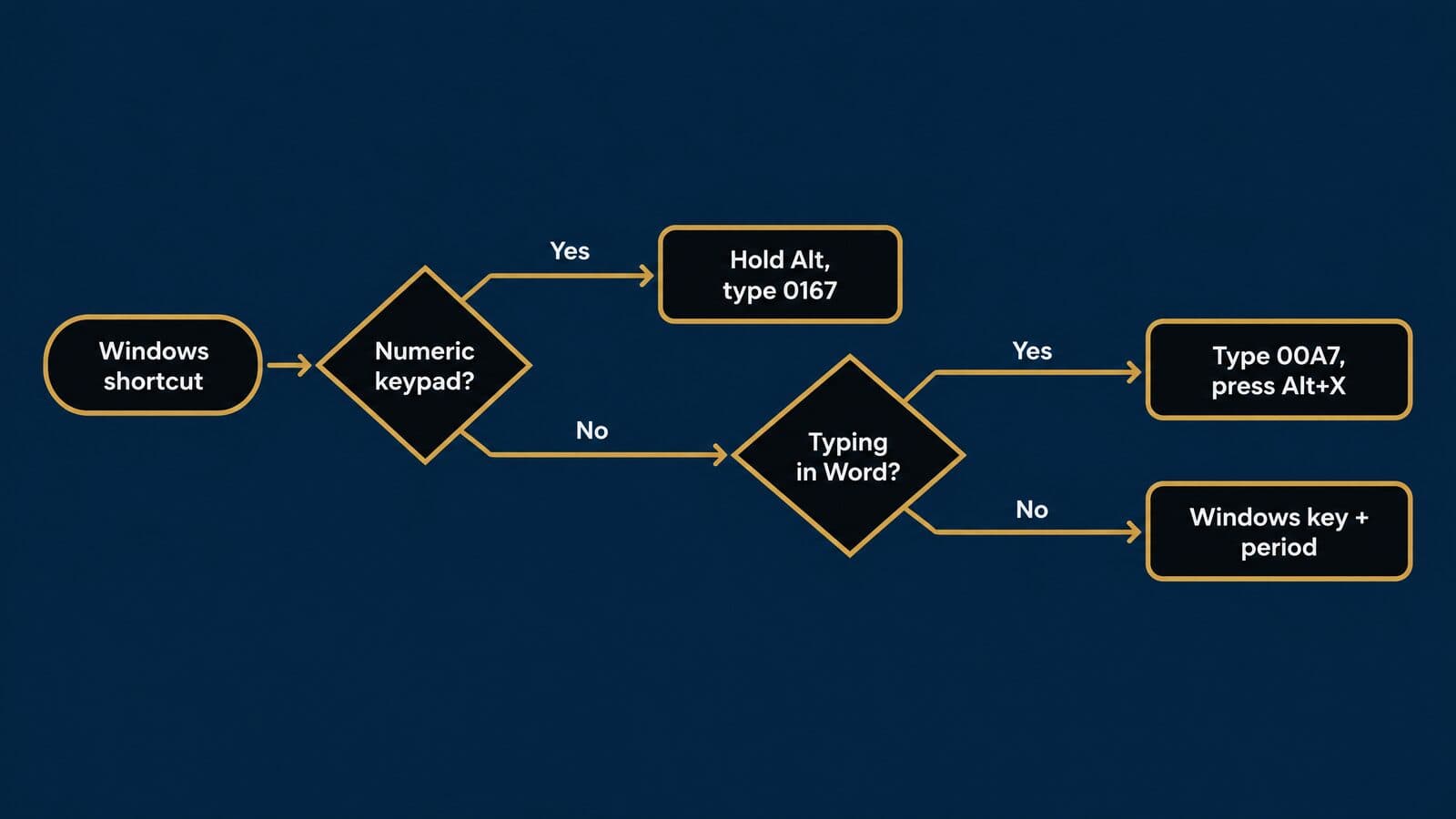
This is the best universal method for laptop users because it works in almost any text field, including browsers, e-filing portals and case management systems, not only Office. Click into the field first, open the panel, switch to the symbols area, find § among the punctuation characters and click it.
Windows 10 has a similar emoji panel opened with the same keys. Keep in mind that Microsoft ended support for Windows 10 on October 14, 2025 (Microsoft), so treat Windows 10 steps as legacy.
Some laptops have an embedded numeric keypad printed on the letter keys and switched on with a function key. Which key turns it on, and whether Alt codes work through it, varies by manufacturer, so check your laptop's manual before relying on it.
Character Map
Character Map is a program built into Microsoft Windows for viewing the characters in a font and copying them to the Clipboard (Microsoft). Microsoft's instructions for Windows 10 say to type "character" in the taskbar search box to open it.
The workflow is short. Open Character Map, pick the font you are writing in, find § in the grid, select it, copy it, then paste it where you need it. The grid is large, so it takes a few seconds the first time.
Character Map earns its place for rare characters like ℠ and ℗ when you are not in Word and the emoji panel does not show them. It also helps when you need to confirm that a specific font actually contains a glyph before you send a document to print.
PowerToys Quick Accent
Microsoft's free PowerToys utilities include Quick Accent, a tool built for accented letters that also handles legal symbols. You hold a letter key and press the activation key, which by default is Left, Right or Space, to open a small picker of variant characters. The default input delay is 300 ms (Microsoft Learn: Quick Accent).
In the PowerToys source code, Quick Accent's "Special" character set maps S to a list that includes §, P to a list that includes ¶, C to ©, R to ® and T to ™ (PowerToys character mappings). To use those, select the Special set in Quick Accent's settings; I could not verify which sets are selected by default.
PowerToys is open source under the MIT license (PowerToys on GitHub). It suits people who already install utilities on their own machines. In a managed firm environment, ask IT before installing it.
United States-International keyboard layout
According to a third-party dump of Microsoft's layout file published by kbdlayout.info, the United States-International layout gives § with AltGr+Shift+S and ¶ with AltGr+;. The same source lists © on AltGr+C and ® on AltGr+R. Microsoft's own support article for this layout now redirects to a generic page, so treat these mappings as secondary.
Switching layouts changes how quote and accent keys behave, which surprises people who never type accented letters. I would only suggest US-International to staff who also type Spanish or French names regularly, for example in intake notes for Spanish-speaking clients.
When an Alt code types the wrong character
When an Alt code fails, the cause is almost always one of these:
- Num Lock is off. Some keyboards need it on for the keypad to send numbers (Microsoft).
- You typed on the number row. Microsoft says Alt codes only work with the numeric keypad (Windows tips).
- The leading zero is missing. Without it, Windows uses code page 437, so
Alt+167gives a different character fromAlt+0167(Raymond Chen). - The number is above 255. By default it wraps modulo 256, so you get an unrelated character.
- The app handles Alt input its own way. Some controls, such as RichEdit, read large numbers differently.
- The laptop's embedded keypad is not active. Turn it on, or switch methods.
If none of those fixes it, stop troubleshooting and use the emoji panel or Character Map. For anyone drafting in Word, though, Word has its own faster methods, covered next.
Section symbol in Word: six ways to insert it
The fastest way to insert the section symbol in Word is to type 00A7 and press Alt+X. For daily use, a shared AutoCorrect entry or a custom keyboard shortcut saves keystrokes and keeps the whole team consistent.
Word is where most legal drafting happens, so it deserves its own section. The six methods below run from zero setup to a few minutes of setup, and the last subsection explains which one a firm should make standard.
1. Type 00A7, then press Alt+X
- Place the cursor where you want §.
- Type
00A7. - Press
Alt+X.
Word converts a hexadecimal code typed just before the cursor into its character, and pressing Alt+X with a character selected shows that character's code instead (Word keyboard shortcuts). Microsoft's own example is 20AC followed by Alt+X, which gives €. For the pilcrow, type 00B6 and press Alt+X. The same method covers every other legal character in this guide: 00A9 for ©, 00AE for ®, 2122 for ™, 2120 for ℠, 2117 for ℗, 2020 for † and 2021 for ‡. Codes for ℠ and ℗ are the ones worth writing down, because neither has an Alt code in Windows-1252.
There is one catch in legal text. Word reads backward from the cursor and may treat the letters and digits before the code as part of it. Citations put § right after a number, as in "42 U.S.C." followed by § and "1983," and typing "U.S.C." then 00A7 with no space is risky. Microsoft's fix is to select the code first or prefix it with "U+" (Microsoft). Its example: "1U+B5" then Alt+X gives "1µ", while "1B5" gives a different character. So after a letter or digit, type U+A7.
The reverse trick is useful too. If a document contains a character you cannot identify, such as a triangle that might be Δ or ∆, select it and press Alt+X to see its code, then press Alt+X again to turn it back.
2. Insert > Symbol > Special Characters
Word's menu route is Insert > Symbol > More Symbols > Special Characters, then double-click the character you want. Microsoft names section marks (§) as an example on that tab (Insert a symbol in Word).
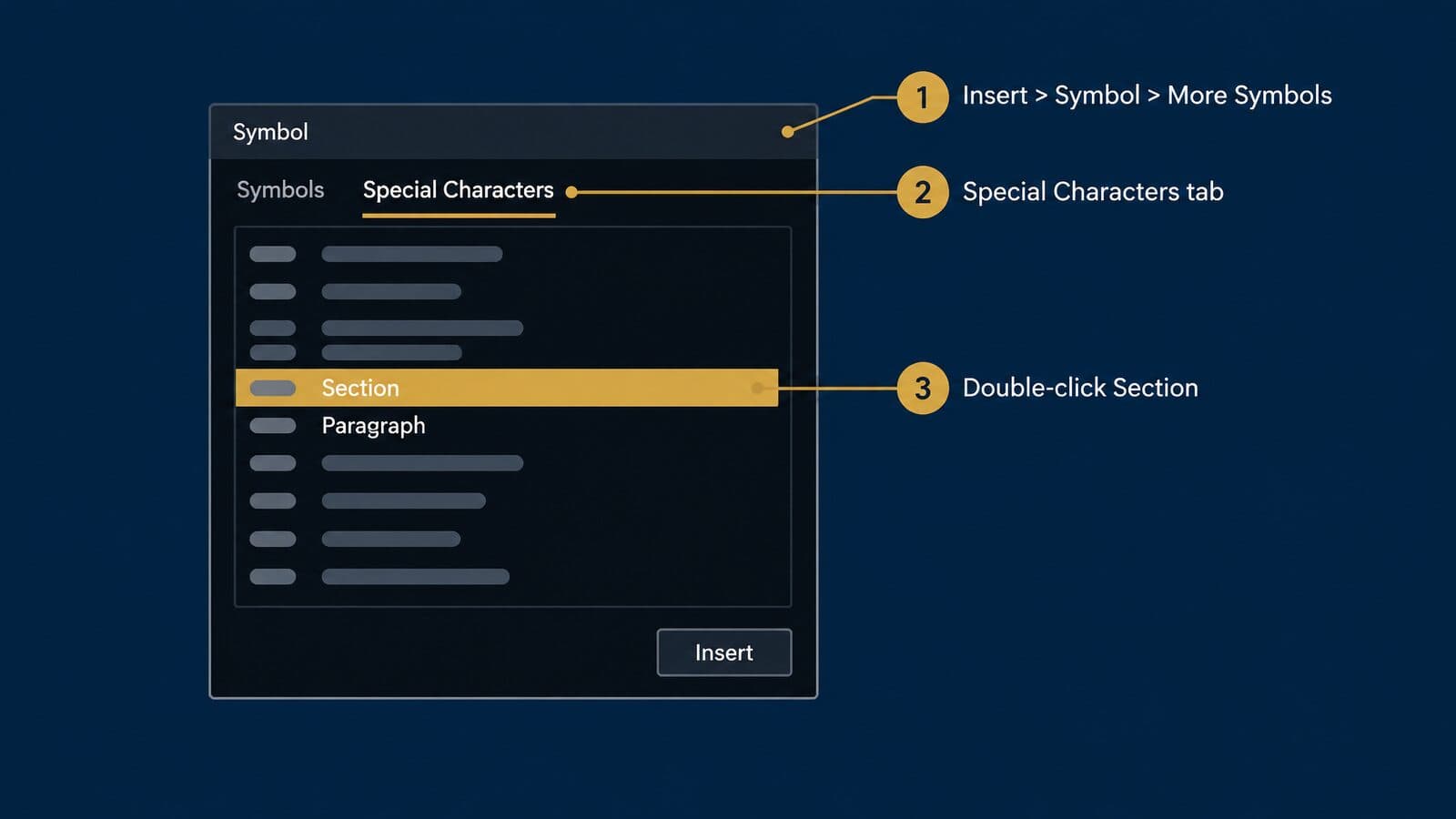
This is the slowest method, but it needs no memorization, which makes it the right one to teach a new hire on day one.
For characters that are not on that tab, use the Symbols tab. When you select a Unicode character there, the "from:" box shows "Unicode (hex)," and Microsoft names Segoe UI Symbol as the font with the largest set of Unicode symbols. That makes it the place to look for Δ, ℠ or ℗ if you do not know their codes.
3. Alt+0167 in Word
Word accepts the Windows ANSI Alt codes on the numeric keypad, so Alt+0167 gives § and Alt+0182 gives ¶ (Word keyboard shortcuts). The steps and troubleshooting are the same as in the Windows section above. If you have a full keyboard and already know the code, there is no reason to switch.
Word for Windows also has built-in shortcuts for neighbors of § that save a trip to the Symbol dialog (Word keyboard shortcuts). Ctrl+Alt+R inserts ®, Ctrl+Alt+T inserts ™, Ctrl+Minus on the numeric keypad inserts an en dash, Shift+Alt+Minus inserts a nonbreaking hyphen and Ctrl+Shift+Spacebar inserts a nonbreaking space. Typing ( C ) gives © through AutoCorrect. Word has no built-in single shortcut for § in that list, which is why methods 4 and 5 exist.
4. Assign your own keyboard shortcut
Word lets you bind § to a key combination of your choice. Microsoft's steps for Word for Windows (Customize keyboard shortcuts):
- Go to File > Options > Customize Ribbon.
- At the bottom, next to "Keyboard shortcuts," select Customize.
- Choose where to save the change: the current document or a template.
- Find the symbol you want to assign, press your new combination, and assign it.
Microsoft says you can assign a shortcut to a frequently used symbol, and that shortcuts should begin with Ctrl or a function key. It also warns that if you reassign a combination Word already uses, you can no longer use that combination for its original purpose. Before you pick one, press it in a blank document to see whether it already does something.
I am not going to suggest a specific combination, because there is no verified list of free ones and many common combinations are already taken. Pick one you never use. Saving to the document limits the shortcut to that file, so a template is the better choice for anything you use daily. Microsoft notes the steps differ in Word for Mac and Word for the web.
5. Create an AutoCorrect entry with a no-break space
AutoCorrect replaces a short trigger with § as you type, and it can insert the no-break space that should follow § at the same time. Microsoft's steps (Add or remove AutoCorrect entries in Word):
- Open Word's AutoCorrect options and go to the AutoCorrect tab.
- In the Replace box, type your trigger.
- In the With box, type the replacement.
- Select Add.
In Word for Mac, select the + sign at the bottom left of the dialog, type the trigger in the Replace column and the replacement in the With column, then press Enter.
For the trigger, use something that is not a real word and will never fire by accident, such as ;sec. That matches the snippet library template in the text expanders section later in this guide. For the replacement, type § followed by a no-break space. In Word for Windows, the nonbreaking space shortcut is Ctrl+Shift+Spacebar (Word keyboard shortcuts). The no-break space keeps § and the section number on the same line, which is how a cite like "§ 1983" should behave at a line end.
After saving, test it. Type ;sec followed by "1983" in a blank document, then press Ctrl+Shift+8 to show nonprinting characters and check the mark between § and the number. A no-break space displays differently from the dot of a regular space; if you see an ordinary space dot, edit the entry and try again. Microsoft also lets several triggers point to the same With text, so ;sec and ;s can both produce §.
Two scope details make AutoCorrect the best team option. The AutoCorrect list applies across all the Office programs that support AutoCorrect, so an entry made in Word works in those apps too. Word for the web supports AutoCorrect, but you cannot add or remove entries there; to edit the list, open the document in the desktop app.
6. Word for Mac and Word for the web
On Word for Mac, the fastest method is the macOS shortcut Option+6, which types § on US and ABC layouts in any app, including Word (Typography for Lawyers). Microsoft's Word for Mac shortcut list adds Option+Spacebar for a nonbreaking space, Option+R for ® and Option+2 for ™ (Word keyboard shortcuts). Microsoft also notes that some Word for Mac shortcuts conflict with macOS shortcuts, so if one does nothing, the system may be intercepting it.
Word for the web has fewer options. You can use AutoCorrect entries that already exist, but you cannot edit the list there (Microsoft). Use your operating system's method instead: the emoji and symbol panel on Windows, Option+6 on a Mac, or copy and paste from a document that already contains §.
Which Word method should a firm standardize on?
Each method trades setup time against speed and portability. This table compares them on the factors that matter for a team.
| Method | Setup | Speed once set up | Travels with the user? | Shared across Office apps? |
|---|---|---|---|---|
00A7 + Alt+X | None | Fast | Yes, nothing to install | No, not PowerPoint |
| Special Characters dialog | None | Slow | Yes | No |
Alt+0167 | None | Fast with a keypad | Needs a keypad | Works in most Windows apps |
| Custom shortcut | Minutes | Fastest | Only where the template is saved | No |
| AutoCorrect entry | Minutes | Fastest | Per Office installation | Yes |
Option+6 (Mac) | None | Fast | Yes | System-wide |
The PowerPoint limit comes from Microsoft's note that PowerPoint cannot convert Unicode codes (Microsoft). The template limit comes from Microsoft's custom-shortcut steps (Microsoft).
I recommend the AutoCorrect entry with a no-break space as the firm standard, set up on every workstation with the same trigger, and 00A7 plus Alt+X as the backup method everyone learns, because it works on any Windows copy of Word with no setup. That covers attorneys drafting briefs and the staff who type statute cites into intake notes, as described in our mass tort intake guide. Write both methods into the firm's style sheet so new hires learn them in their first week.
Section sign in Outlook, Excel, PowerPoint and Google Docs
Outlook follows Word's methods, Excel needs =UNICHAR(167), PowerPoint cannot convert Alt+X codes, and Google Docs uses Insert > Symbols > Special characters.
Most of the § you type outside Word lands in emails, spreadsheets, slide decks and shared Google documents. Each of those apps handles special characters a little differently, and two of them have traps that produce the wrong character without warning.
Outlook
Microsoft's Unicode-entry page applies to Outlook, and it names only PowerPoint and InfoPath as programs that cannot convert codes (Microsoft). So 00A7 followed by Alt+X is the method to try first in the Outlook desktop message window. With a keypad, Alt+0167 works as it does elsewhere in Windows.
The shared AutoCorrect list also applies in Office apps that support AutoCorrect (Microsoft), so the ;sec entry set up in Word can carry over to Outlook. This matters for emails to co-counsel and claimants that cite statutes, such as a note confirming a filing under a specific section. Send yourself a test message to confirm that the entry fires.
Excel: use UNICHAR, not CHAR
In Excel, =UNICHAR(167) returns § and =UNICHAR(182) returns ¶. UNICHAR returns the Unicode character for a given number and applies to Excel for Microsoft 365 on Windows and Mac and to Excel 2016 through 2024 (UNICHAR function).
Avoid =CHAR(167). CHAR uses the character set of your computer: ANSI on Windows, the Macintosh character set on Mac (CHAR function). In Mac OS Roman, position 167 is ß, and § lives at a different position (Mac OS Roman mapping). So the same workbook may show § on a Windows PC and ß on a Mac. Microsoft also documents limits on which CHAR values Excel for the web supports.
| Formula | Windows | Mac |
|---|---|---|
=UNICHAR(167) | § | § |
=CHAR(167) | § | May return ß |
This comes up whenever a sheet builds text from formulas. A statute column in an MVA lead tracking sheet might join "N.Y. Ins. Law" with a section number using =UNICHAR(167) and a space, so every row reads the same no matter who opens the file. For one-off cells, simply type or paste § directly; formulas only matter when the text is generated.
To keep the symbol and number together in a generated cite, join a no-break space as well. A formula such as ="42 U.S.C. "&UNICHAR(167)&UNICHAR(160)&"1983" builds the full citation, because 160 is the decimal value of the no-break space (Windows-1252 table). The cell displays the same as one built with a regular space, but the result keeps § and 1983 on one line when the text is pasted into Word or a web page that wraps.
PowerPoint
Microsoft says PowerPoint cannot convert Unicode codes to characters, so 00A7 plus Alt+X does nothing there, and it points to Character Map instead (Microsoft). Use the Windows emoji and symbol panel, Alt+0167 with a keypad, or Option+6 on a Mac.
AutoCorrect entries also apply in Office apps that support AutoCorrect, so test your ;sec trigger in a slide text box. That helps for trial graphics, CLE presentations and settlement-conference decks that cite the governing statute.
Google Docs, Slides and Sheets
In Google Docs and Slides, go to Insert > Symbols > Special characters. You can find a character by browsing categories, by entering its Unicode value (type 00A7 in the search box) or by drawing it with your mouse (Google Docs Help).
Google Sheets is different. Google says you can't insert special characters directly in Sheets; copy the character from a Doc and paste it into the cell. The operating system methods, such as the Windows emoji panel or Option+6 on a Mac, also work in a Sheets cell.
For repeat use, set up an automatic substitution. In Docs, go to Tools > Preferences > Substitutions and add a row that replaces ;sec with § plus a space (Google Docs Help: automatic substitutions). Google says Autocorrect can be managed only on a computer, not on Android, iPhone or iPad, and that it works in English, French, German, Portuguese and Spanish.
This setup pays off for content teams drafting SEO pages for mass tort firms in Docs, where statute citations appear on nearly every page and a mistyped symbol can travel straight into a published page. Keep the trigger identical to the one in Word so writers only learn one habit. If your team also numbers paragraphs in shared outlines, add a second row for ¶ (for example ;para) at the same time, and paste the finished list into the firm's style sheet so every new writer can recreate it on their own account.
Mac users have it easier: one key combination covers § on most layouts.
How to type § on a Mac: US, UK and German keyboards
On a US or ABC keyboard layout, press Option+6 for § and Option+7 for ¶. UK (ISO) Mac keyboards with the British layout add a dedicated § key to the left of 1, and the German layout puts § on Shift+3.
The Option-key pair is the method Typography for Lawyers recommends for Mac users, and it is the fastest route on any Mac with a US-style layout. The full key list below was read directly from the keyboard layouts built into macOS, rather than copied from other guides; the Sources and methodology section explains how. That matters because Mac shortcuts depend on the active input source, not on the physical keys printed on the keyboard. A MacBook bought in London but switched to the US layout behaves like a US keyboard, and a US MacBook set to German behaves like a German one. If a shortcut below types the wrong character, check which layout is selected in the menu bar's input menu before assuming the shortcut is wrong.
Which Mac method should you use? If you type § or ¶ several times a day, learn the Option shortcut for your layout; it is two keys and needs no setup. If you type full statute cites repeatedly, set up text replacements, because a trigger such as ;mdl saves far more keystrokes than a single symbol shortcut. If you need an unusual character once a month, use the Character Viewer and skip memorizing anything. Many people end up using all three: the shortcut for the bare symbol, replacements for recurring cites, and the viewer for the rare character.
Option-key shortcuts on US and ABC layouts
The US and ABC layouts share the same Option-key mappings for every legal character in this guide. Hold Option, press the second key, and release both. For the shifted entries, hold Shift and Option together.
| Character | US and ABC layouts |
|---|---|
| § section sign | Option+6 |
| ¶ pilcrow | Option+7 |
| © copyright | Option+G |
| ® registered | Option+R |
| ™ trademark | Option+2 |
| † dagger | Option+T |
| ‡ double dagger | Shift+Option+7 |
| – en dash | Option+Minus |
| — em dash | Shift+Option+Minus |
| no-break space | Option+Space |
| π small pi | Option+P |
| ∏ n-ary product | Shift+Option+P |
| ∆ increment | Option+J |
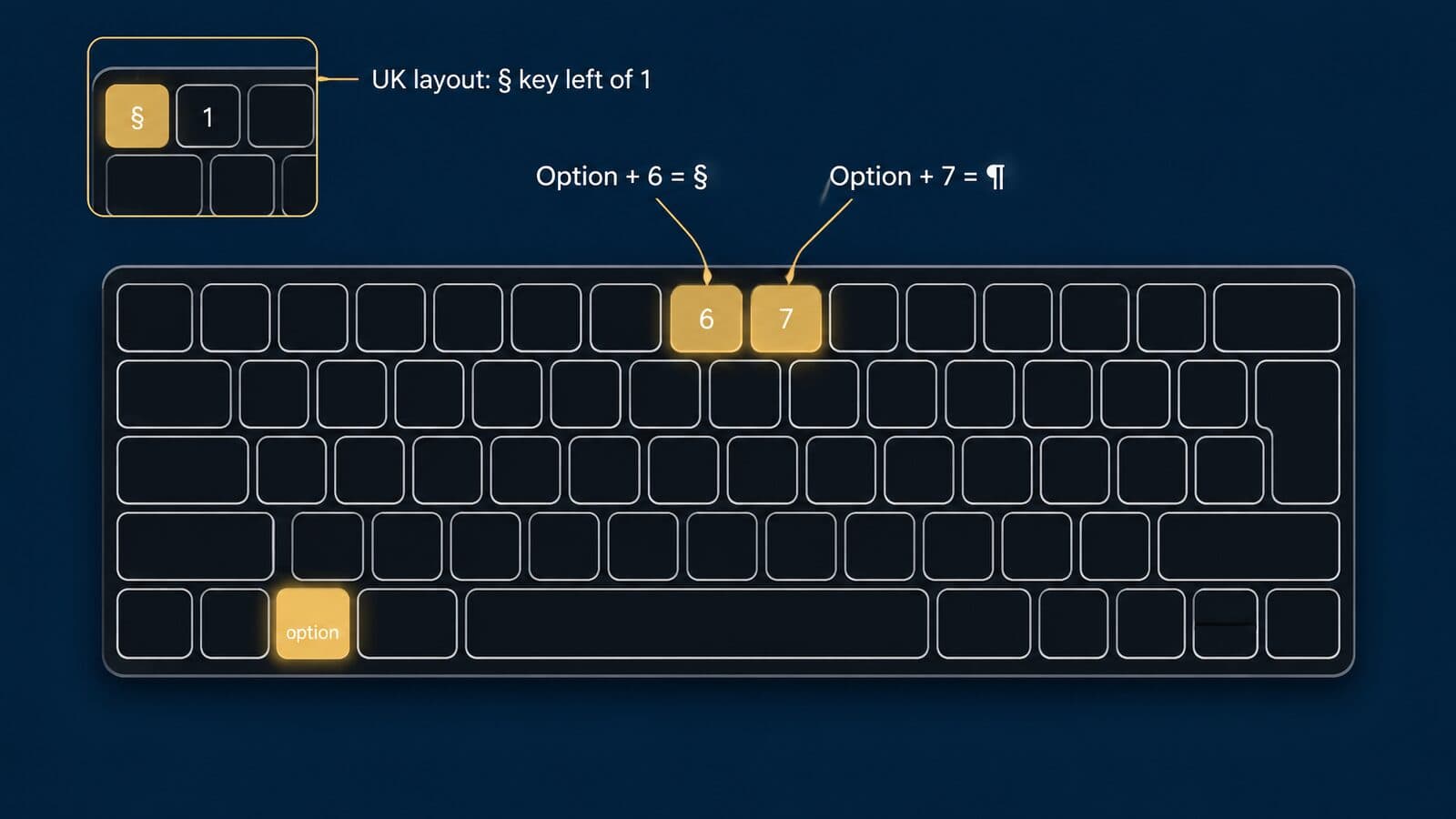
Three entries deserve a second look. Option+Space types a real no-break space, which is the character you want between § and the section number so the two never split across a line. Option+J types ∆, the mathematical increment sign, not the Greek capital delta Δ that law students use for "defendant"; the two look alike but are different characters, as the look-alike table in the plaintiff and defendant section explains. And Option+P gives a lowercase π, while Shift+Option+P gives ∏, a product sign, not a capital Greek Π.
Four characters in this guide have no Option shortcut at all on the US and ABC layouts: Greek Δ, Greek Π, the service mark ℠ and the sound recording copyright ℗. For those, use the Character Viewer described below, or set up a text replacement once and type a short trigger from then on.
Because these shortcuts come from the keyboard layout rather than from any one program, they work the same way in Word for Mac, Pages, Mail, Outlook for Mac and a browser window. That is a real advantage over Windows, where the fastest method changes depending on whether you are inside Word. A firm that standardizes on Macs can teach one pair of keys to every new hire and expect it to work everywhere they type.
UK keyboards and the ISO § key
On the British layout, Option+6 and Option+7 still give § and ¶, but Option+2 types the euro sign €, so ™ moves to Shift+Option+2. Shift+3 is the pound sign £, and Option+3 is the hash sign #.
The British layout also benefits from hardware. ISO-style Mac keyboards, the kind sold in the UK and much of Europe, have one more key than US (ANSI) keyboards: a small key to the left of 1. Apple's developer headers name it kVK_ISO_Section, and with the British layout selected it types § on its own and ± with Shift. That makes § a single keystroke for UK users. Other layouts can map that key differently, so if you use an ISO keyboard with a non-British layout, press it once in a blank document to see what it produces.
German layout: Shift+3
On the German layout, Shift+3 types § and Option+3 types ¶. Do not carry the US habit over: on this layout Option+6 types a closing square bracket and Option+7 types a vertical bar, so neither produces a legal symbol.
The German placement reflects how common the mark is in German legal writing, where statutes are cited by § in everyday use; the history section later in this guide covers that background. For a bilingual firm, the practical rule is simple: the shortcut follows the active layout, so staff who switch layouts should learn both positions or rely on a text replacement that works the same way everywhere.
Character Viewer and Favorites
The Character Viewer is macOS's built-in symbol picker, and it reaches every character in this guide. Apple's Mac keyboard shortcuts page says Control+Command+Space or Fn+E opens it; on newer keyboards the Fn key is marked with a globe, so the same shortcut reads Globe+E. Apple's emoji and symbols guide adds a menu route: choose Edit > Emoji & Symbols in most apps.
Browse its symbol categories to find the character you need and insert it at the cursor. Apple's guide also lets you add a symbol to Favorites, which keeps it one click away the next time. This is the right tool for Greek Δ and Π, ℠ and ℗, which have no Option shortcut, and for anyone who only needs a legal symbol a few times a month.
Text Replacements in System Settings
A text replacement swaps a short trigger for a character or phrase as you type, and macOS stores it at the system level so it works in most Apple and many third-party apps. Apple's Mac User Guide page on text replacements gives the current steps:
- Choose Apple menu > System Settings.
- Click Keyboard in the sidebar, then click Text Replacements.
- Click the add button in the dialog that appears.
- Type the shortcut in one field and the replacement in the other.
- Click Add, then Done.
Apple's own example on that page replaces (c) with ©, which shows the idea well. For legal symbols, I recommend triggers that start with a semicolon, such as ;sec for § and ;para for ¶, because no real word starts that way; the snippet template later in this guide lists a full set.
If your screenshots or internal instructions look different, check their age. The path changed with macOS Ventura (13). Apple's macOS Monterey (12) version of the guide says Apple menu > System Preferences > Keyboard > Text, while the macOS Ventura (13) version moves it to System Settings with Keyboard in the sidebar. Many older guides still show the System Preferences route.
Apple's guide also points to backing up and sharing text replacements through iCloud, which keeps them current across your Apple devices. Set the triggers up once on a Mac, and the same ;sec should work on your iPhone and iPad after they sync.
When a text replacement doesn't fire
The usual cause is that substitution is switched off in the app you are typing in. In that app, choose Edit > Substitutions and make sure Text Replacement is checked. To apply replacements to text you have already typed, Apple's guide says to choose Edit > Substitutions > Show Substitutions, then click Replace in Selection or Replace All.
Some apps have no Substitutions menu at all and ignore system text replacements. In those, fall back to Option+6 and Option+7, or use a cross-platform text expander, covered in the text expanders section below. If the trigger fires but the result looks wrong, check whether the app strips the no-break space you saved; a quick test in each app you use daily settles it.
Section sign on iPhone, Android, Chromebook and Linux
On an iPhone, § typically appears when you long-press the & key on the 123 keyboard. On Android, look on the keyboard's extra symbols page; Chromebooks and Linux desktops accept a Unicode entry shortcut, Ctrl+Shift+U followed by the code.
Phones and Chromebooks matter more than they used to in plaintiff practice. Intake staff answer web leads from tablets, attorneys approve demand letters from a phone, and law students take notes on Chromebooks. The methods below range from fully documented by the platform vendor to widely reported but undocumented; the table at the end of this section sorts them so a firm can write instructions it can rely on.
iPhone and iPad
On the iPhone keyboard, tap 123, then touch and hold the & key; § typically appears among the variants. Apple does not document long-press variants for individual keys, so this location comes from secondary sources such as a Legal Clarity guide to the statute symbol. If your keyboard differs, the reliable route is a text replacement, which Apple does document in the iPhone User Guide:
- In any text field, touch and hold the globe or emoji key.
- Tap Keyboard Settings, then tap Text Replacement.
- Tap the add button (+).
- Type § in the Phrase field and
;secin the Shortcut field, then save.
The same list is also reachable from Settings > General > Keyboard > Text Replacement. Apple's guide says iCloud keeps your personal dictionary up to date across your devices, so replacements you created on a Mac should appear on the iPhone and iPad, and the reverse. My recommendation: if you want the phrase to include a no-break space after §, test it once in Mail, Notes and your case-management app, because not every app keeps that invisible character intact.
Android phones and tablets
Android keyboards differ by maker and by version, and Google does not publish where § sits on any of them. The guidance here is therefore general. Open the keyboard's symbols view, then look for a second page of extra symbols. Many keyboards also show variant characters when you long-press a key, so try long-pressing related keys such as the paragraph or ampersand position.
For anything you type often, check your keyboard's help for a personal dictionary or text-shortcut setting. Many keyboards let you save a shortcut such as ;sec that expands to §. As a fallback that works on every phone, keep a pinned note containing § ¶ © ® ™ and copy from it.
Chromebook
Google's help documents one built-in route on ChromeOS: the emoji picker, opened with Search+Shift+Space (or Launcher+Shift+Space), per its Chromebook keyboard shortcuts page. Google's special characters help does not document a Unicode entry shortcut.
Tech sites such as 9to5Google and Chrome Story widely report that Ctrl+Shift+U, then 00a7, then Space or Enter inserts §. Treat that as an unofficial method: it is handy for a single user, but it is not something Google promises to keep. When you are working in Google Docs in the browser, the Special characters tool covered in the Google Docs section of this guide is the documented alternative.
Linux (GNOME)
The GNOME desktop documents Unicode entry directly. According to GNOME Help, press Ctrl+Shift+U, type the four-character code point (00a7 for §, 00b6 for ¶), then press Space or Enter.
The same page documents three other routes: a Compose key you can enable under Settings > Keyboard > Type Special Characters > Compose Key; the Characters app, which works like a searchable character map; and Ctrl+; for emoji. Other Linux desktops have their own tools, so check your desktop's documentation if you do not use GNOME.
Which of these methods are documented
The table below separates methods the platform vendor documents from methods reported only by third parties.
| Platform | Built-in method | Permanent shortcut | Documented by the platform vendor? |
|---|---|---|---|
| iPhone and iPad | Long-press & on the 123 keyboard | Text Replacement | Shortcut yes; long-press no (secondary only) |
| Android | Extra symbols page | Keyboard dictionary shortcuts | No; varies by keyboard |
| Chromebook | Emoji picker; Ctrl+Shift+U | None built in | Emoji picker yes; Ctrl+Shift+U no (secondary only) |
| GNOME Linux | Ctrl+Shift+U | Compose key | Yes |
For firm-wide instructions, prefer the documented methods: they are the ones least likely to change silently after a software update.
Text expanders and a firm-wide symbol snippet library
A text expander turns a short trigger such as ;sec into § plus a no-break space in every app. For a firm, a shared snippet library is the simplest way to keep statute citations consistent across intake notes, demand letters and briefs.
The symbol itself is the easy part. The value of a snippet library is that the long strings, such as a full statute cite, are typed the same way by every person in the office, with the right spacing and the right number of section signs, every time.
Start with the tools you already have
Before buying anything, use the replacement features already built into your software. Word's AutoCorrect keeps one list that Office apps supporting AutoCorrect share, and Microsoft's AutoCorrect help page shows how to add entries. Apple's Text Replacements sync through iCloud across Mac, iPhone and iPad. Google Docs has its own automatic substitutions under Tools > Preferences > Substitutions, which Google's Docs help says you can manage only on a computer.
Each of these works only inside its own app family or platform. A team that mixes Windows laptops, Macs and phones ends up maintaining three or four separate lists, and they drift apart. That drift is the problem a cross-platform text expander solves.
Four questions decide which kind of tool a firm needs. Which platforms does your staff actually type on, including phones? Does the tool sync one shared library to every user, or does each person keep a separate list? Does your IT policy allow installing third-party software, or only built-in features? And do you need only symbols and short cites, or longer blocks such as standard demand-letter paragraphs? A solo attorney on one Mac may need nothing beyond Text Replacements. A twenty-person office on mixed hardware usually benefits from one shared, cross-platform library with a named owner.
Text expanders compared
The tools below are the main options a law office is likely to consider. Prices and licence terms are as of October 2026.
| Tool | Platforms | Licence and price | Notes |
|---|---|---|---|
| TextExpander | See vendor | Free plan $0 with 5 active snippets; Pro billed annually at $60 per user; Business billed annually at $120 per user; Enterprise by quote | Prices exclude tax |
| PhraseExpress | Windows and Mac, plus an iPhone app | One-time Standard, Professional and Enterprise licences, valid for life with 12 months of updates; prices on the vendor's shop | Volume discounts from five licences |
| FastKeys | Windows | Personal $29 one-time (up to 3 computers per user); Professional $39 one-time (single computer) | No subscription |
| Espanso | Windows, macOS, Linux | Free, open source (GPL-3.0) | Configuration-file based |
| AutoHotkey | Windows | Free, open source (GPL-2.0) | Scripting tool, steeper setup |
| PowerToys Quick Accent | Windows | Free (MIT) | A character picker, not a text expander |
Sources: the TextExpander pricing page, which notes that customers in VAT or GST countries may see higher totals; the PhraseExpress shop; the FastKeys order page; Espanso's site; the AutoHotkey repository; and Microsoft's Quick Accent documentation and PowerToys repository. Prices change; confirm them with each vendor before you buy.
Quick Accent works differently from the others: you hold a letter and press an activation key to pick a variant, and its "Special" character set, according to the PowerToys source code, includes § under S and ¶ under P once that set is selected in its settings. It cannot expand a full statute cite.
Some older guides recommend a Word add-in called Lawcuts. Its website did not resolve and no Microsoft AppSource listing was found on October 22, 2026, so treat it as unavailable.
A snippet library template for plaintiff firms
This is my recommended starting set for a plaintiff firm. The naming convention is deliberately boring. Every trigger starts with a semicolon, so it never matches a real word and never fires by accident. Triggers are lowercase, so nobody has to remember capitals. A plural adds "s", so ;sec and ;secs sit side by side. Statute snippets use a short name the team already says out loud, such as "mdl" or "tcpa".
| Trigger | Expands to | Use |
|---|---|---|
;sec | § and a no-break space | Single section |
;secs | §§ and a no-break space | Multiple sections |
;para | ¶ and a no-break space | Numbered paragraph |
;paras | ¶¶ and a no-break space | Several paragraphs |
;tm | ™ | Unregistered mark |
;reg | ® | Registered mark only |
;cr | © | Copyright notice |
;nd | – (en dash) | Ranges |
;mdl | 28 U.S.C. § 1407 | MDL transfer statute |
;tcpa | 47 U.S.C. § 227 | TCPA |
;dppa | 18 U.S.C. §§ 2721–2725 | Driver privacy |
;decl | 28 U.S.C. § 1746 | Unsworn declarations |
;clja | Pub. L. No. 117-168, § 804(b) | Camp Lejeune Justice Act |
The statute rows point to real provisions: 28 U.S.C. § 1407 governs multidistrict litigation transfers, 47 U.S.C. § 227 is the TCPA, 18 U.S.C. § 2721 through § 2725 make up the Driver's Privacy Protection Act, 28 U.S.C. § 1746 covers unsworn declarations, and section 804 of Public Law 117-168 is the Camp Lejeune Justice Act. Note the §§ in the DPPA row: a range of sections takes the doubled sign.
Why build the no-break space into the trigger? An ordinary space lets a word processor or a web browser break the line between § and the number, leaving a lone § at the end of one line and 1407 at the start of the next. Putting the no-break space inside the snippet means nobody has to remember it; the correct spacing arrives with the symbol. The full-cite snippets should use the same no-break space after each § for the same reason.
A few practical checks before anyone relies on the file. Confirm that each tool keeps the no-break space; some strip it or convert it to an ordinary space. Verify every statute snippet against the matter in front of you, since a snippet is a starting point, not a cite check. Keep the master file under version control or on a shared drive with one owner, so changes are deliberate. If outsourced intake teams take calls for you, give them the same file, and align it with the intake-note conventions in our mass tort intake guide so the language in a lead's notes matches the language in the eventual complaint.
Rolling the library out to staff
A snippet library only helps if everyone uses the same one. A simple rollout:
- Choose one tool per platform, for example AutoCorrect or a cross-platform expander on Windows and Text Replacements on Apple devices.
- Import the same triggers everywhere, from the single master file.
- Test each trigger in Word, Outlook, the browser and your case-management notes field, and fix any that misfire or lose the no-break space.
- Print a one-page trigger sheet and keep it next to every workstation for the first few weeks.
- Add new statutes when a campaign launches, as part of your mass tort campaign launch checklist.
- Review the file quarterly, removing triggers nobody uses and correcting any cite that has changed.
Section sign codes: Unicode, HTML, CSS and LaTeX
The section sign is Unicode U+00A7 (decimal 167). In HTML write §, § or §; in CSS \00A7; in LaTeX \S; and in a URL %C2%A7.
This section is for the people who build the pages, templates and documents that lawyers type into: web developers, legal marketers, LaTeX users and anyone who has seen a stray "Â" appear in front of a section sign. Each code below is taken from the governing standard or specification and linked to it.
Unicode code points and names
Every character has one code point and one official name in Unicode. The values below come from Unicode 18.0.0, which its version page dates September 16, 2026; the decimal and UTF-8 values are computed from those code points.
| Character | Code point | Unicode name | Decimal | UTF-8 bytes |
|---|---|---|---|---|
| § | U+00A7 | SECTION SIGN | 167 | C2 A7 |
| ¶ | U+00B6 | PILCROW SIGN | 182 | C2 B6 |
| © | U+00A9 | COPYRIGHT SIGN | 169 | C2 A9 |
| ® | U+00AE | REGISTERED SIGN | 174 | C2 AE |
| ™ | U+2122 | TRADE MARK SIGN | 8482 | E2 84 A2 |
| ℠ | U+2120 | SERVICE MARK | 8480 | E2 84 A0 |
| ℗ | U+2117 | SOUND RECORDING COPYRIGHT | 8471 | E2 84 97 |
| † | U+2020 | DAGGER | 8224 | E2 80 A0 |
| ‡ | U+2021 | DOUBLE DAGGER | 8225 | E2 80 A1 |
| – | U+2013 | EN DASH | 8211 | E2 80 93 |
| — | U+2014 | EM DASH | 8212 | E2 80 94 |
| no-break space | U+00A0 | NO-BREAK SPACE | 160 | C2 A0 |
| narrow no-break space | U+202F | NARROW NO-BREAK SPACE | 8239 | E2 80 AF |
All of these characters except the narrow no-break space have been in Unicode since version 1.1, according to Unicode's DerivedAge data file; the narrow no-break space arrived in 3.0. § and ¶ also sit at the same positions, 0xA7 and 0xB6, in the older ISO/IEC 8859-1 (Latin-1) character set, which is why their decimal codes match across so many systems. For Δ, ∆, Π and π, see the look-alike table in the plaintiff and defendant section.
HTML entities
HTML lets you write any of these characters as a named reference, a decimal reference or a hexadecimal reference. The named references below come from the WHATWG list of named character references.
| Character | Named reference | Decimal | Hex |
|---|---|---|---|
| § | § | § | § |
| ¶ | ¶ | ¶ | ¶ |
| © | © | © | © |
| ® | ® | ® | ® |
| ™ | ™ | ™ | ™ |
| ℠ | none | ℠ | ℠ |
| ℗ | ℗ | ℗ | ℗ |
| † | † | † | † |
| ‡ | ‡ or ‡ | ‡ | ‡ |
| – | – | – | – |
| — | — | — | — |
| no-break space | |   |   |
| Δ | Δ | Δ | Δ |
| ∆ | none | ∆ | ∆ |
| Π | Π | Π | Π |
| π | π | π | π |
Two rules from the HTML syntax specification prevent most errors. Numeric references must end in a semicolon: § is correct, § is not. And while browsers still recognize the legacy form § without a semicolon, always add it; the semicolon-free forms exist only for old pages.
Which form should you pick? Named references such as § are the easiest to read in source code, so they suit hand-edited templates. Decimal and hex references work for every character, including ℠ and ∆, which have no name, so they suit generated code and content management systems that escape everything numerically. All three forms produce the same character in the browser; consistency within one codebase matters more than the choice itself. In a page served as UTF-8, which almost every modern site is, I recommend simply typing the character itself in the source, which keeps the code readable. The entity has a specific job on statute pages, keeping § attached to its number, and the website section later in this guide covers it.
CSS content escapes
CSS uses a different escape format. Per the W3C CSS Syntax specification, an escape is a backslash followed by one to six hexadecimal digits, and one whitespace character after the escape is consumed. So content: "\00A7" and content: "\A7 " both produce §. The padded six-digit or four-digit form is safer, because it cannot run into a following letter that happens to be a valid hex digit.
The common use case on a law firm site is generated numbering: a stylesheet can add § before each item in a styled list of statutes, so editors type only the numbers and the sign appears consistently.
LaTeX commands
LaTeX has dedicated commands for legal marks. The LaTeX2e reference manual's text symbols page lists \S or \textsection for §, \P or \textparagraph for ¶, \dag or \textdagger for †, \ddag or \textdaggerdbl for ‡, \copyright or \textcopyright for ©, \textregistered for ®, and \texttrademark for ™.
For multiple sections, §§ is simply \S\S. Law students and academics writing in LaTeX can also define a short macro for frequently cited statutes, which plays the same role as a snippet in a word processor.
Markdown, UTF-8 and the "§" problem
In Markdown, the CommonMark specification accepts HTML entity references and numeric character references in normal text, so § renders as §. They do not work inside code spans or code blocks, where they print literally. That is useful when you want to show the code itself, and confusing when you meant the symbol.
The most common symbol bug on law firm websites is not a missing §, it is a garbled one. In UTF-8, § is stored as the two bytes C2 A7. If any system in the chain reads those bytes as Windows-1252 instead of UTF-8, the first byte displays as "Â" and the second as §, so readers see "§". The pilcrow fails the same way and becomes "¶". You will typically see this in pasted content, form-to-email notifications, CSV exports opened in a spreadsheet, and email templates.
A quick diagnosis helps you fix it at the right point. If the stray "Â" appears on the live page, the page is probably being served or stored with the wrong character set. If the page looks fine but the confirmation email shows "§", the email template or sending service is the culprit. If only a spreadsheet export is affected, the file was opened with the wrong encoding rather than saved wrong. In each case, the fix is to declare and use UTF-8 at that step, not to delete the stray characters by hand, because they will come back with the next form submission.
Legacy documents add a second failure mode. The old Mac OS Roman character set put § at byte 0xA4 and ¶ at 0xA6, while 0xA7 in that set is ß. A very old Mac file read as Latin-1, or the reverse, swaps the symbols for unrelated characters. URLs have their own encoding: § percent-encodes as %C2%A7. I recommend keeping § out of page slugs altogether and writing "section" in the URL instead.
Garbled symbols travel further than they used to. Answer engines quote your pages verbatim, so a broken "§" can end up in an AI-generated answer too (see answer engine optimization for personal injury lawyers). Ask whoever handles law firm website development to confirm UTF-8 end to end: the database, the page header, form handlers and outgoing email.
Typing the character correctly is half the job. Placing it correctly in a citation, with the right spacing, doubling and form, is the other half, and that is where the next section turns.
How to cite § correctly: Bluebook, ALWD and state rules
In a legal citation, put a space after § (ideally a no-break space), double it as §§ for more than one section, spell out "Section" when it starts a sentence, and follow the citation manual and local rules your court requires, because some states drop or move the symbol. Those four habits cover nearly every § question that comes up in a brief, a complaint or a demand letter.
This section is formatting guidance, not legal advice. The citation manual your court requires, and that court's local rules, control over anything written here. Where a rule number appears below, it is one that could be confirmed for the current edition; where it could not, the guidance is described in words instead of by sub-rule letter.
Which manual governs: Bluebook, ALWD or local rules
The current Bluebook is the 22nd edition. Its publisher's site, The Bluebook, advertises material "New for the 22nd Edition Online" and explains that saved pins migrate from the 21st edition to the 22nd. According to the University of Washington law library's Bluebook guide, the 22nd edition was released at the end of May 2025, and Cornell's Legal Information Institute independently says it was published in 2025.
The other national manual is the ALWD Guide to Legal Citation, Eighth Edition, by Carolyn V. Williams, published by Aspen Publishing with a 2026 copyright. It has 42 rules. Rule 13 is "Sections and Paragraphs", Rule 21 is "Statutory Codes and Session Laws", and Rule 42 is "Generative Artificial Intelligence". As of October 2026, Aspen lists the Print + eBook bundle at $92.00 and the eBook alone at $69.00; confirm current pricing with the publisher before you order.
A free reference many paralegals keep open is LII's Introduction to Basic Legal Citation by Peter W. Martin. It says it was most recently revised in 2026 following the release of the Bluebook 22nd edition. One caution: the PDF edition of that guide still refers to the ALWD Guide's 7th edition from 2021, so check any ALWD rule reference you take from it against the 8th edition. LII also reports that the 22nd edition's most significant change for practitioners was a new "(citation modified)" parenthetical replacing the "(cleaned up)" label.
Above both manuals sit the courts. Local rules can require a specific form; Illinois Supreme Court Rule 341, for example, directs that Illinois statutes generally be cited to the Illinois Compiled Statutes. Most legal research tools generate citations automatically; check their § spacing and doubling against your manual before you paste them into a filing.
Put a space after § and keep it attached
Always put a space between § and the number, and make it a space that cannot break. Matthew Butterick's Typography for Lawyers says to always follow § or ¶ with a nonbreaking space. LII's statement of the federal statute principle describes the section number as preceded by "the section symbol and space", so the space itself is not optional in any of the major guides.
Government printing goes slightly further. The GPO Style Manual, in Rule 10.6, shows § and ¶ set with a thin space before the figure, as in "§ 12" and "¶ 1951". The type foundry Monotype, in its punctuation series article on the section sign, also recommends a nonbreaking space after §.
Why the no-break version matters: with an ordinary space, a word processor is free to end a line with § and start the next line with 1983. The reader then sees a lonely symbol at the right margin. A no-break space keeps "§ 1983" together as one unit wherever the line wraps.
Typing it takes one shortcut:
- Word for Windows:
Ctrl+Shift+Spacebarinserts a nonbreaking space, per Microsoft's Word shortcut list. - Word for Mac:
Option+Spacebar, per the same Microsoft list. - Any app on a Mac with the U.S. or ABC layout:
Option+Spaceproduces U+00A0, the no-break space.
If you want the thinner GPO look, Unicode has a separate narrow no-break space, U+202F. In my view the regular no-break space is the better default for briefs, because Unicode says it should match the width of a normal space, and it sits in the same Latin-1 block as § itself. The web version of this problem, where HTML collapses spaces differently, is covered in the law firm websites section below.
Double the symbol for multiple sections
Use §§ when one citation refers to more than one section, and ¶¶ when it refers to more than one paragraph. A Colorado Community College System guide to the 22nd edition describes this practice and points to Bluebook Rule 3.3; see Rule 3.3 in your copy for the exact wording. Typography for Lawyers gives the same doubling rule for both marks.
The Driver's Privacy Protection Act shows the form. Its first section, 18 U.S.C. § 2721, covers prohibition on release and use of certain personal information from state motor vehicle records, and its last, 18 U.S.C. § 2725, is the definitions section. Cited as a whole, the act's sections are written 18 U.S.C. §§ 2721–2725.
The doubling rule is about sections, not about how long the chain of subsections runs. One section with several layers of subsections still takes a single §: 42 U.S.C. § 405(c)(2) refers to one section, so one symbol is correct.
Watch for the mirror mistake as well. A drafter who has just learned §§ sometimes applies it to a single section, writing "§§ 1983". That is as wrong as a single § before a range, and both are easy to catch with a search for the doubled symbol.
Spell out "Section" at the start of a sentence
Never start a sentence with §; write the word "Section" instead. Butterick's illustration on Typography for Lawyers makes the contrast plain: "Section 17200 applied… but § 17500 did not." The first reference opens the sentence and is spelled out; the second sits mid-sentence and uses the symbol.
The Bluebook groups this kind of guidance under Rule 6.2, "Numerals and Symbols", according to a Georgetown Law Writing Center handout on common Bluebook errors. Older guides cite lettered sub-rules for § in text, but the current edition's sub-rule letters could not be confirmed, so check the rule itself in your copy.
Government style is different. GPO Style Manual Rule 9.39 abbreviates "Sec." and "Art." at the beginning of a paragraph, except that the first of a series is spelled out. That convention suits statute books and regulations, where sections are headings, not sentences inside an argument.
So the rule depends on the document. In a brief, a memo or a demand letter, spell out "Section" at a sentence start. In a document typeset to GPO style, follow GPO. Where both could apply, the court's rules decide.
Subsections, paragraphs and clauses
A subsection chain attaches directly to the section number, with no spaces inside it. LII states the principle for federal statutes: the section number includes "all designations of smaller units (lettered or numbered subsections, paragraphs, subparagraphs, and clauses)", preceded by the section symbol and a space. Its example is 42 U.S.C. § 405(c)(2)(C)(ii): section 405, subsection (c), paragraph (2), subparagraph (C), clause (ii).
In running prose you have a second option. I recommend naming the unit in words when the sentence is about the structure of the statute, for example "subsection (c) of section 405", and using the compact citation form when you are pointing the reader to authority.
The U.S. Code's own amendment notes show the vocabulary. Notes to 42 U.S.C. § 405 use "subsec.", "par.", "subpar.", "cl." and "subcl." to describe which unit an amendment changed. Those abbreviations are useful for reading the notes, though in citations the parentheses carry the meaning without them.
The citation anatomy table near the top of this guide breaks one full cite into its parts; refer back to it if a long chain looks confusing. The point to keep is the one that answers the search that brings many readers here: "subsection" never gets a symbol of its own. Unicode has no character named "subsection sign", and none is needed, because the parentheses do the work.
Ranges, lists and dashes
A range of sections takes §§, and in this guide's examples the two numbers are joined with an en dash: 18 U.S.C. §§ 2721–2725. The en dash is the house style used throughout this page, matching how the range is commonly displayed.
To type the en dash in Word for Windows, press Ctrl+Minus using the minus key on the numeric keypad, per Microsoft's shortcut list. On a Mac, Option+Minus produces the en dash in any app. Styles do vary: Monotype's article writes its range example with a hyphen, "§§ 122-125". Follow your manual and local rules on the dash; this guide does not cite a rule number for it.
A list of sections that are not consecutive also takes §§, with the numbers separated by commas, for example "§§ 2721, 2724". That follows directly from the doubling rule: the citation refers to more than one section, so the symbol doubles, whether the sections form a range or not.
Compare three forms of the same reference side by side. "18 U.S.C. §§ 2721–2725" is a range and takes the doubled symbol with a dash. "18 U.S.C. §§ 2721, 2724" is a list and takes the doubled symbol with a comma. "18 U.S.C. § 2721(a)" is one section with a subsection and takes a single symbol, whatever follows it in parentheses. The count of sections, not the length of the string, decides the symbol.
Two habits keep ranges clean. First, never put a single § before a range. Second, keep the dash consistent across the whole document, so a reader never sees an en dash in one cite and a hyphen in the next.
State formats that drop or move the §
Many state courts use their own citation forms, and some of them move the § or drop it entirely. LII's guide collects state-specific forms that differ from Bluebook form; the examples below come from its state tables.
| Jurisdiction | Form used by the state's courts | What changes |
|---|---|---|
| Illinois | 810 ILCS 5/1-101 | No §; Bluebook form is 810 Ill. Comp. Stat. § 5/1-101 |
| Florida | § 671.1-101, Fla. Stat. (year) | Section comes first |
| Pennsylvania | 13 Pa.C.S. § 1101 | Pa.C.S. abbreviation |
| California | Civil Code § 1836 | Code name, no state abbreviation |
| Colorado | Regulations cited generally without § | § omitted for regulations |
Illinois is the clearest case of a court rule driving the form. Illinois Supreme Court Rule 341 says Illinois statutes "shall generally be cited" to the Illinois Compiled Statutes, which is why the ILCS form with its slash replaces the § in Illinois briefs.
Florida's section-first order looks unusual to anyone trained on the Bluebook, but it is the form LII reports for Florida's courts. California's form names the code in words and leaves out the state abbreviation, because the court already knows which state's Civil Code it means.
Pennsylvania keeps the § but changes the code abbreviation to Pa.C.S., written without internal spaces, so a Bluebook-trained drafter mainly needs to adjust the abbreviation rather than the symbol. Colorado's note is narrower: LII reports that within the state, regulation citations are generally used without the § symbol, so the change applies to regulations, not to every citation a Colorado filing contains.
A practical way to handle these differences is a short decision order. First, ask which court will read the document. Second, look up that court's local rules and any state supreme court rule on citation form. Third, fall back to the Bluebook or ALWD for anything the state rules leave open. Fourth, apply the same form to every cite of that kind in the document, because a brief that mixes "810 ILCS 5/1-101" with "810 Ill. Comp. Stat. § 5/1-101" looks unedited even if each form is defensible somewhere.
When you file in state court, check the state's own rules and the court's local rules first, then the Bluebook or ALWD for anything they do not address. A multistate mass tort practice may need different forms for the same kind of statute in different filings, which is a good reason to keep a per-state note in the firm's style guide.
Worked citations from mass tort and PI practice
Here is how the § and ¶ rules apply to statutes that plaintiff firms cite constantly, from the MDL transfer statute to state no-fault thresholds, with the correct form and the common wrong one for each.
Federal statutes: MDL, TCPA, DPPA and declarations
28 U.S.C. § 1407 is titled "Multidistrict litigation". Under it, transfers for coordinated or consolidated pretrial proceedings are made by the Judicial Panel on Multidistrict Litigation. Mass tort firms cite it constantly, and the glossary's MDL entry explains the term itself. Firms buying mass tort leads for an MDL docket will see the cite in nearly every case update.
Correct: 28 U.S.C. § 1407. Common wrong forms: "28 USC §1407" (no space after §, and periods dropped from the code abbreviation) and "§ 1407 of Title 28" in a citation rather than prose.
47 U.S.C. § 227 is titled "Restrictions on use of telephone equipment" and is the TCPA section. It appears here only as a citation-format example. When a subsection matters, the chain attaches with no spaces, following the same LII principle shown above. For how the statute affects intake and advertising, see the guide to TCPA compliance for legal marketing.
The Driver's Privacy Protection Act, 18 U.S.C. §§ 2721–2725, runs from § 2721 (the prohibition on release and use of motor-vehicle-record information) to § 2725 (definitions). Cited as a whole it takes §§; cited for the prohibition alone it is 18 U.S.C. § 2721.
28 U.S.C. § 1746 is titled "Unsworn declarations under penalty of perjury". It is the statute behind most declarations filed with motions. Declarations are numbered-paragraph documents, so once the statute is cited, later references to the declaration's own content use ¶, as in "the declaration at ¶ 6".
Session laws: the Camp Lejeune Justice Act
The Camp Lejeune Justice Act of 2022 is section 804 of Public Law 117-168, the Sergeant First Class Heath Robinson Honoring our Promise to Address Comprehensive Toxics Act of 2022 (bill S. 3373), approved August 10, 2022. Section 804 begins at 136 Stat. 1802 and is classified as a note preceding 28 U.S.C. § 2671.
A Bluebook-style cite is: Pub. L. No. 117-168, § 804, 136 Stat. 1759, 1802 (2022). The first page number is where the public law starts in the Statutes at Large; the second is where section 804 starts.
Subsection (b) covers people exposed for not less than 30 days between August 1, 1953 and December 31, 1987, with suit brought in the Eastern District of North Carolina. Cited to that unit, the form is Pub. L. No. 117-168, § 804(b). The firm-facing summary of who qualifies is in the Camp Lejeune Justice Act § 804(b) eligibility criteria, and the litigation background is in the Camp Lejeune water contamination lawsuit overview.
Intake scripts and demand letters often shorten this to "CLJA § 804(b)". That shorthand is fine for internal notes once the full cite has been given, but a filing should give the public law number, the section and the Statutes at Large page at least once, so the reader can find the text without guessing which act "CLJA" refers to.
The lesson for § use: here the symbol marks a section of the act, not a section of the U.S. Code. Because the act sits in a note rather than its own Code section, do not invent a Code cite for it by guessing a nearby section number in title 28.
Bankruptcy trusts: 11 U.S.C. § 524(g)
11 U.S.C. § 524 is titled "Effect of discharge". Subsection (g)(1)(A) authorizes the injunction used with trusts for claims caused by the presence of, or exposure to, asbestos or asbestos-containing products. That provision is why asbestos claims are often paid through trusts.
Cite the exact unit when the argument turns on it: 11 U.S.C. § 524(g)(1)(A). Shorthand such as "524(g) trusts" is fine in internal notes and marketing copy, but in a filing the full form with title, code and one § is the safe choice. For how trust payments fit into overall recoveries, see the mass tort settlement guide.
State no-fault and threshold statutes
New York's no-fault threshold is defined in N.Y. Ins. Law § 5102(d). Section 5102 is titled "Definitions", and subsection (d) defines "serious injury", beginning with a personal injury that results in death, dismemberment, significant disfigurement or a fracture. Screening an auto case in New York starts with that definition, which is why it comes up in New York MVA lead screening.
Florida's counterpart is Fla. Stat. § 627.737, titled "Tort exemption; limitation on right to damages; punitive damages" in the 2026 Florida Statutes. Following the Florida court format LII describes, a Florida filing would put the section first: § 627.737, Fla. Stat. (2026). A brief to a federal court applying Bluebook form would cite Fla. Stat. § 627.737 (2026).
The state forms differ, but the § habits do not: one space after the symbol, kept attached, and a single § for a single section. For a plain-English comparison of how threshold rules shape case value, see no-fault vs at-fault states and the overview of choice no-fault states.
¶ references in complaints and declarations
Pleadings and declarations cite their own numbered paragraphs with ¶: ¶ 14 for one paragraph, ¶¶ 3–5 for a run. That follows Typography for Lawyers' guidance on ¶ for numbered-paragraph documents and the doubling practice for multiple paragraphs.
Mass tort complaints make this harder than usual. A master or short-form complaint can run to hundreds of numbered paragraphs, and briefs, plaintiff fact sheets and demand letters may all point back to specific paragraphs in it. A single inserted allegation near the top shifts every number below it.
One practical tip: after edits, paragraphs get renumbered, and the ¶ cross-references in the brief that relies on the complaint or declaration do not update themselves. Recheck every ¶ reference against the final numbering before filing.
Right and wrong forms at a glance
The table pulls the worked examples into one place. Each row gives the form to use, a wrong form that commonly appears, and the reason.
| Write this | Not this | Why |
|---|---|---|
| 42 U.S.C. § 1983 | §1983 or "§ 1983 of the U.S. Code" | Space after §; cite title and code |
| 18 U.S.C. §§ 2721–2725 | 18 U.S.C. § 2721–2725 | Ranges take §§ |
| 42 U.S.C. § 405(c)(2)(C)(ii) | 42 U.S.C. § 405 (c) (2) (C) (ii) | No spaces inside the chain |
| Pub. L. No. 117-168, § 804(b) | A guessed "28 U.S.C. §" number | The act is a note preceding 28 U.S.C. § 2671 |
| "Section 5102(d) defines..." | "§ 5102(d) defines..." | Spell out at a sentence start |
| ¶ 14 | ¶ used for plaintiff | ¶ means paragraph |
The 42 U.S.C. § 1983 row is a good test case because the statute, titled "Civil action for deprivation of rights" on LII's U.S. Code page, is so familiar that drafters shorten it. "Section 1983 claim" is fine in prose; the citation still needs the title and code.
Common § and ¶ mistakes and a pre-filing checklist
Most § errors are spacing, plural and sentence-start mistakes that a two-minute check catches. The checklist below covers them, plus look-alike characters and word-limit questions.
Ten mistakes to search for
Each of these can be found with Word's ordinary Find box by searching for § or ¶ and reading what sits on either side. The fix follows each item.
- No space after §. "§1983" runs the symbol into the number. Insert a no-break space so the cite reads "§ 1983", as Typography for Lawyers and LII both call for a space between the mark and the number.
- A regular space that lets § strand. An ordinary space allows the line to break between § and the number, leaving the symbol alone at the margin. Replace it with a no-break space,
Ctrl+Shift+Spacebarin Word for Windows. - §§ before a single section. "§§ 1407" doubles a symbol that refers to one section. The doubled form is for multiple sections in one citation, per the practice tied to Bluebook Rule 3.3. Delete the extra mark.
- A single § before a range. "18 U.S.C. § 2721–2725" refers to five sections with one mark. Write 18 U.S.C. §§ 2721–2725, matching how the Driver's Privacy Protection Act range is cited in the worked examples above.
- § starting a sentence. "§ 1983 provides..." breaks the sentence-start rule. Rewrite it as "Section 1983 provides...", following Butterick's guidance, or restructure the sentence so the citation falls mid-sentence.
- Spaces inside subsection parentheses. "§ 405 (c) (2)" splits the chain. LII's form joins the units with no spaces: § 405(c)(2)(C)(ii). Search for a closing parenthesis followed by a space and an opening parenthesis.
- ¶ used to mean plaintiff. ¶ is the pilcrow, which Unicode also names the paragraph sign. Lists that call it a plaintiff symbol are wrong. Use ¶ only for numbered paragraphs; write "plaintiff" in full in anything filed.
- Mixed Δ and ∆, or π and Π, in one document. These are different Unicode characters that look alike: Greek capital delta versus the increment sign, lowercase versus capital pi. Pick one per document, usually the Greek letter, and replace the other.
- "SS" or "S.S." typed as a stand-in for §. The "ss." in notary venue captions is usually explained as Latin scilicet, "namely", according to a languagehat discussion of the abbreviation. It is not "section". Type the real § instead.
- A wrong character from an Alt code. Alt+30 produces ▲, a black up-pointing triangle from the IBM PC character set, not a delta. If an Alt code gives an unexpected glyph, delete it and use one of the verified methods in the Windows section.
Word limits and the § question
Federal appellate briefs have a hard word limit, and every token in the body counts toward it unless a rule excludes it. Under FRAP 32(a)(7)(B), a principal brief is acceptable if it contains no more than 13,000 words, or 1,300 lines in monospaced type; a reply brief may contain no more than half that.
The same rule sets the type. FRAP 32(a)(5) requires proportionally spaced type of 14-point or larger, with serifs, though sans-serif is allowed in headings and captions. FRAP 32(f) says headings, footnotes and quotations count toward the limit. Excluded items include the cover page, disclosure statement, table of contents, table of citations, statement regarding oral argument, addendum of statutes, rules or regulations, certificate of counsel, signature block and proof of service.
FRAP 32(g)(1) lets the person preparing the certificate of compliance rely on the word or line count of the word-processing system used to prepare the document. That makes your software's count the practical number for federal appellate filings.
What no source settles is whether a free-standing § is counted as a word. No federal rule addresses it, and no word-processor vendor documents how its counter treats the symbol. Three steps keep you safe:
- Check the local rule or standing order for any instruction on counting.
- Test what your own word processor counts on a short sample with "§ 1983" in it before you rely on a tight margin.
- Keep § attached to its number with a no-break space as a matter of typography, and do not try to game the count by deleting spaces or symbols.
State courts and federal district courts set their own limits, often in pages rather than words, and their local rules may count differently from FRAP. Read the specific rule for the court and document type each time, because a motion, a reply and an appellate brief in the same case can be governed by different provisions.
If a brief lands within a few words of the limit, the honest fix is to cut a sentence, not to change how citations are spaced.
The § pre-filing checklist
I recommend that whoever finalizes the document run this check, usually the paralegal or associate who prepares the filing copy, and that they run it after the last substantive edit and before the final PDF is generated. It takes a few minutes on a typical brief and catches the mistakes listed above. The same list works for complaints, declarations and demand letters; skip the word-count item where no limit applies, and keep a signed-off copy of the list with the filing file so the next reviewer knows it was done.
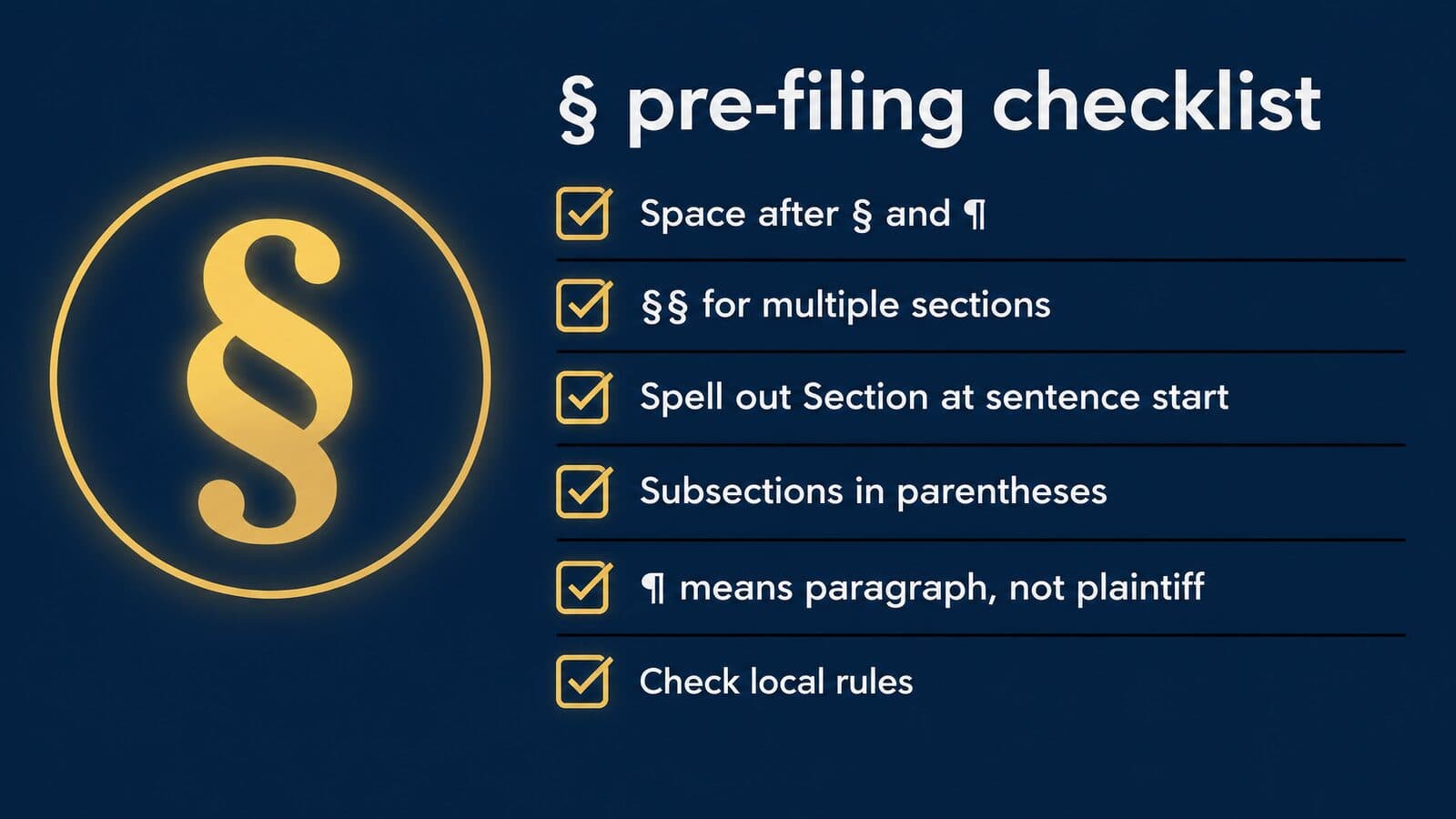
- Confirm the governing manual and edition: Bluebook 22nd, ALWD 8th, or the state form the court requires.
- Search every § and ¶ and confirm that a no-break space, not a regular space, follows each one.
- Confirm that §§ and ¶¶ appear only where a citation refers to more than one section or paragraph.
- Rewrite every sentence that starts with § so it starts with the word "Section" instead.
- Check each subsection chain for stray spaces between the parentheses.
- Apply state formats where the court requires them, such as the ILCS form in Illinois or section-first order in Florida.
- Scan for look-alike characters, especially Δ against ∆ and π against Π, and make each consistent.
- Reconcile every ¶ cross-reference with the final paragraph numbers of the complaint or declaration it cites.
- Run the word count the court's rule requires and make sure the certificate of compliance states the same figure.
- Open the final PDF and check that every § and ¶ displays correctly, with no boxes or substituted characters.
Every rule in this section is a modern convention, set by citation manuals and court rules, while the mark itself is centuries old.
History of the § sign and its use outside the US
The § sign has been used in its modern form since the 15th century. The most-cited theory traces it to two interlocked S's from the Latin signum sectionis, though scholars disagree about its origin, according to Wikipedia's summary and the type foundry Monotype.
None of that history changes how you cite a statute today. It does explain why the mark looks the way it does, why it varies so much from one font to the next, and why a lawyer reading a German or Austrian statute sees the same character used in a slightly different way.
Origin theories: signum sectionis and paragraphos
The double-S theory is the one you will see repeated most often. On this account, scribes abbreviated signum sectionis, "sign of the section", by stacking one S on top of another, and over time the two letters fused into the single looped glyph we use now. It is a tidy story, and it fits the shape: look closely at § in most serif faces and you can still see an upper S and a lower S sharing a spine.
Not everyone accepts it. Both sources above note that some scholars are sceptical of the ligature explanation, and another theory connects the sign to the Greek paragraphos, a mark ancient scribes used to divide text. Treat both as theories. No primary record settles the question, and a brief or blog post that states one origin as fact is going further than the evidence does.
The capitulum, ancestor of the pilcrow
The pilcrow (¶) has its own documented lineage, and Unicode records part of it. The Unicode names list annotates U+2E3F CAPITULUM as the "ancestor of the pilcrow sign". That character entered the standard late: the DerivedAge file shows it was added in Unicode 7.0, while U+204B REVERSED PILCROW SIGN goes back to Unicode 3.0.
For practical purposes you will never need either of these in a filing. They matter mainly when you are reproducing a historical text or a manuscript facsimile, and they are a useful reminder that ¶ and § are separate characters with separate histories, even though legal writers use them side by side.
How the glyph changes by typeface
Monotype notes that § designs vary by typeface, and its article contrasts the forms in FS Siena and FS Brabo. Some fonts draw a compact, upright mark with tight loops; others give it long, calligraphic tails that sit well above and below the line. The pilcrow varies just as much, from a solid filled bowl to an open outline.
That variation has a practical consequence. FRAP 32(a)(5) requires proportionally spaced briefs to use 14-point or larger type with serifs, so the face you file in decides how § and ¶ will look to the court. Before you settle on a house font, print a page with "§§ 2721–2725" and "¶¶ 12–14" on it and check that the doubled marks stay distinct and readable. If you are choosing a typeface for the firm's documents or website, our guide to the best fonts for law firms covers the trade-offs.
§ in German and other European law
The § sign is not an American invention, and US lawyers are not its heaviest users. German statutes are cited with it as a matter of course: § 242 StGB, for example, is the Criminal Code provision titled "Diebstahl" (theft). In German the mark is read aloud as "Paragraf", and NV Access's German dictionary for the NVDA screen reader speaks it that way.
That naming difference is easy to trip over. In German legal usage the unit marked with § is often called a "Paragraf", where an American lawyer would say "section". Unicode adds a further twist: its names list notes that ¶ is used as a section sign in some European usage. If you work with foreign-law materials or with translators, confirm which convention the source document follows before you convert its marks.
Red tape and Simoleons
The sign has also picked up meanings outside the law. In Jaroslav Hašek's The Good Soldier Švejk, § stands for bureaucracy itself, and Paul Selver's 1930 English translation rendered it as "red tape", according to the Wikipedia summary linked above. The Sims and SimCity games use a §-like symbol for their in-game currency, the Simoleon, per Wikipedia and Monotype.
Neither use has any bearing on citation, but both explain why a client or a juror might read § as something other than "section". In anything written for a lay audience, spelling out the word costs nothing.
Section signs on law firm websites, screen readers and ads
On a law firm website, keep § attached to its number with a no-break space, serve every page as UTF-8, don't rely on screen readers to announce §, and test any symbol in ad copy before launch. Each of those rules exists because the web handles the mark differently from a word processor.
A brief goes to a judge as a fixed PDF. A practice-area page has to survive narrow phone screens, content management systems, email templates, assistive technology and ad review. The sections below take those one at a time.
Keep "§ 1983" on one line
In HTML, put (or its numeric form  ) between § and the number so a citation like 42 U.S.C. § 1983 can't break across lines on a narrow screen. Both references are defined in the WHATWG list of named character references, and the HTML syntax rules require numeric references to end in a semicolon.
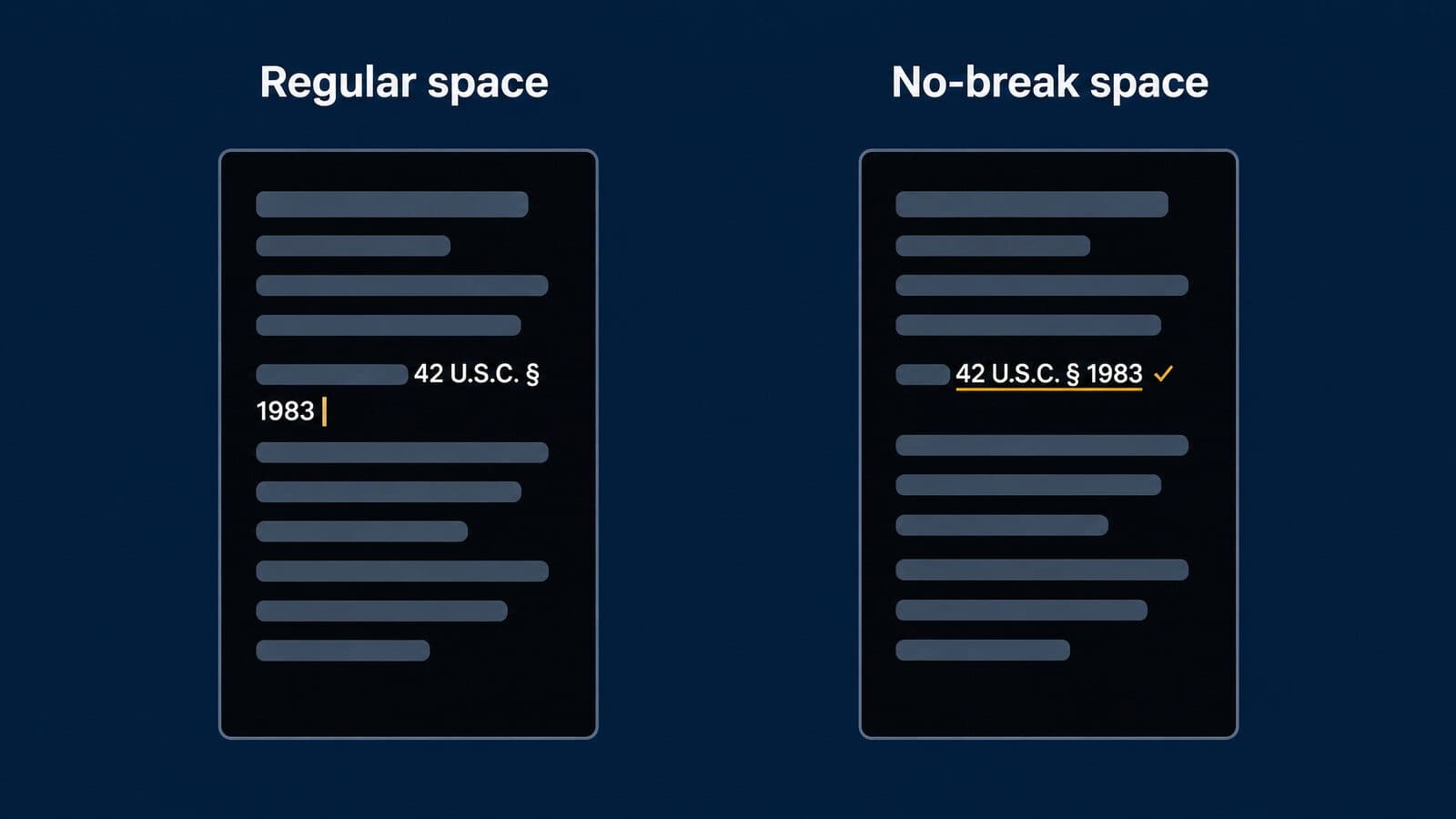
Without that character, a browser treats the space after § like any other and may wrap the line there, leaving a lonely § at the end of one line and "1983" at the start of the next. On a desktop monitor you may never notice. On a phone, where a paragraph can wrap every five or six words, it happens constantly.
Unicode says the no-break space "should be the same width as the space", so it looks identical to a normal space. If you want a tighter join, closer to the thin space the GPO uses in print, the narrow no-break space is a separate character, U+202F, written   in HTML. Check that your chosen web font renders it before you adopt it sitewide.
If you are commissioning ADA-conscious law firm landing pages, my recommendation is to put the no-break-space rule in the content style guide and to store a ready-made "§ + no-break space" snippet in the CMS snippet library, so writers never have to remember the entity.
What screen readers actually say
NVDA, the open-source screen reader from NV Access, does not announce § by name with its English defaults. Its English symbol dictionary speaks § as "section" only at symbol level "all", and ¶ as "paragraph marker" at level "most". The NVDA user guide and source code set the default level at "some" (a value of 100), and a symbol is spoken only when its level is at or below the user's setting.
| Symbol | NVDA English reading | Level | Spoken at default English settings? |
|---|---|---|---|
| § | section | all | No |
| ¶ | paragraph marker | most | No |
| ©, ®, ™ | (names) | some | Yes |
| †, ‡ | (names) | some | Yes |
| – and — | (names) | most | No |
Users can change the level with NVDA+P, but you cannot assume a visitor has done so. Language changes the result too. NVDA's German dictionary reads § as "Paragraf" at level "some", so German users hear it by default, and the French dictionary reads § as "section" and ¶ as "paragraphe". JAWS, VoiceOver and TalkBack were not checked for this guide, so don't generalise from NVDA to them.
The practical fix is simple. Where a listener needs the citation, write the word in the prose as well: "Section 1983 claims, brought under 42 U.S.C. § 1983, ..." Alternatively, give the citation an accessible label through an aria-label attribute on the element that wraps it, so the spoken version says "section 1983" while the visual version keeps the symbol.
Encoding checks before you publish
Serve every page and email template as UTF-8. The most common symptom of an encoding problem is "§" or "¶" appearing where § or ¶ should be. That pattern means the UTF-8 bytes of the character were read as Windows-1252; the byte-level detail is in the codes section earlier in this guide, so it is not repeated here.
It usually shows up after a migration: a theme change, a CMS import, a switch of email provider. Check three places that are easy to miss. First, PDFs generated from web forms. Second, CMS fields such as page titles, meta descriptions and structured-data fields, which may pass through a different code path from the body. Third, form confirmation emails, which often use a separate template engine.
A quick way to test is to publish a draft page containing §, ¶, ™ and an en dash, send yourself the form confirmation and the newsletter version, and open each on a phone and a desktop mail client. If any of the four arrives with a stray  or a question-mark box in front of it, fix the encoding before the page goes live, not after a client spots it.
Keep § out of URLs entirely. It percent-encodes as %C2%A7, which is ugly to share and easy to break. Landing pages built for personal injury lead generation often cite state statutes; run the same check on every template.
Symbols in ad copy
Google Ads' Editorial policy disallows "punctuation or symbols that aren't used correctly or for their intended purpose" and "invalid or unsupported characters". Whether § is accepted in a given ad field is not stated in that policy, and other ad platforms were not checked for this guide.
So treat § in an ad as something to test, not something to promise. Draft the headline in the ad editor, see whether it passes review, and keep a version that spells out "Section 1983" ready as the fallback. The spelled-out form is also easier to read at a glance on a small screen. If you manage law firm PPC campaigns, add that test to the pre-launch checklist rather than finding out from a disapproval email.
"§ 1983" or "section 1983" in search
Google's help page on refining searches doesn't say how it handles symbols such as §, so don't assume "§ 1983" and "section 1983" are treated as the same query. Nothing Google publishes confirms it either way.
What you can see is your own data. Open the query report in Search Console, filter for the statute number, and look at which forms people actually type: "§ 1983", "section 1983", "1983 claim", or all three. My recommendation is to use both the symbol and the word naturally on the page, the symbol in the citation and the word in the surrounding prose, which also helps the screen-reader problem above. The same thinking applies to AI search optimization for law firms, where answer engines quote the wording on the page, and it fits into broader mass tort law firm SEO work on statute-heavy pages.
Sources and methodology
This guide was researched and fact-checked on October 22, 2026 against primary sources: the Unicode Character Database 18.0.0, Microsoft, Apple, Google and GNOME documentation, the WHATWG HTML standard, the U.S. Code and official state codes, the Federal Rules of Appellate Procedure, and the citation guides named below.
Where a primary source was not available, the text says so and attributes the point to the secondary source it came from.
How this guide was researched
Character names, code points and version history come from Unicode 18.0.0; its version page is dated 2026-09-16 and still carries a preliminary-draft banner. Alt-code behavior comes from Unicode-hosted code page tables (CP1252, IBMGRAPH and CP437) and from Raymond Chen's post on The Old New Thing, Microsoft's engineering blog.
Mac key outputs were read from the keyboard-layout data that ships with macOS (U.S., ABC, British and German layouts) on October 22, 2026, and cross-checked against Typography for Lawyers for Option+6 and Option+7. Citation practice comes from LII's Introduction to Basic Legal Citation, Typography for Lawyers, the GPO Style Manual and FRAP 32. The Bluebook and ALWD texts are paywalled, so edition and rule numbers come from publisher pages and law-library guides, and sub-rule letters are left out. Prices are as of October 2026.
Researched and written by Tarun, founder of Mass Tort Marketing Agency.
Primary sources, dated
- Unicode UnicodeData.txt and NamesList.txt, version 18.0.0, accessed October 22, 2026.
- Unicode code page mappings: CP1252, CP437 and IBMGRAPH (linked above), accessed October 22, 2026.
- Microsoft Support, Windows keyboard tips and tricks, accessed October 22, 2026.
- Microsoft Support, Insert ASCII or Unicode Latin-based symbols, accessed October 22, 2026.
- Microsoft Support, Keyboard shortcuts in Word, accessed October 22, 2026.
- Apple Mac User Guide, text replacements, accessed October 22, 2026.
- Apple iPhone User Guide, text replacement, accessed October 22, 2026.
- Google Docs Help, special characters, accessed October 22, 2026.
- GNOME Help, special characters, accessed October 22, 2026.
- WHATWG HTML named character references (linked above), accessed October 22, 2026.
- LII, Introduction to Basic Legal Citation (2026), accessed October 22, 2026.
- GPO Style Manual (2016) and FRAP 32 on LII (linked above), accessed October 22, 2026.
- NV Access NVDA English and German symbol dictionaries (linked above), accessed October 22, 2026.
What could not be verified
Several points could not be confirmed on a primary source. The iPhone long-press location for § rests on a secondary source only, since Apple does not document key variants. Android keyboard layouts vary by app and were not verified. Chromebook Unicode entry with Ctrl+Shift+U is reported by secondary sources but not in Google's help. The US-International layout mapping comes from a third-party dump. JAWS, VoiceOver and TalkBack readings of § were not tested. Ad-platform acceptance of §, how Google Search treats §, and whether word processors or e-filing systems count a free-standing § as a word are all undocumented. This guide will be re-checked when any of these sources change.